Homework Management Software for Tutoring and Learning Centers
Create homework once, assign it to students or a whole class, and see at a glance what is waiting for review and what is missing. Students write right on the worksheet and teachers correct it on the same whiteboard.
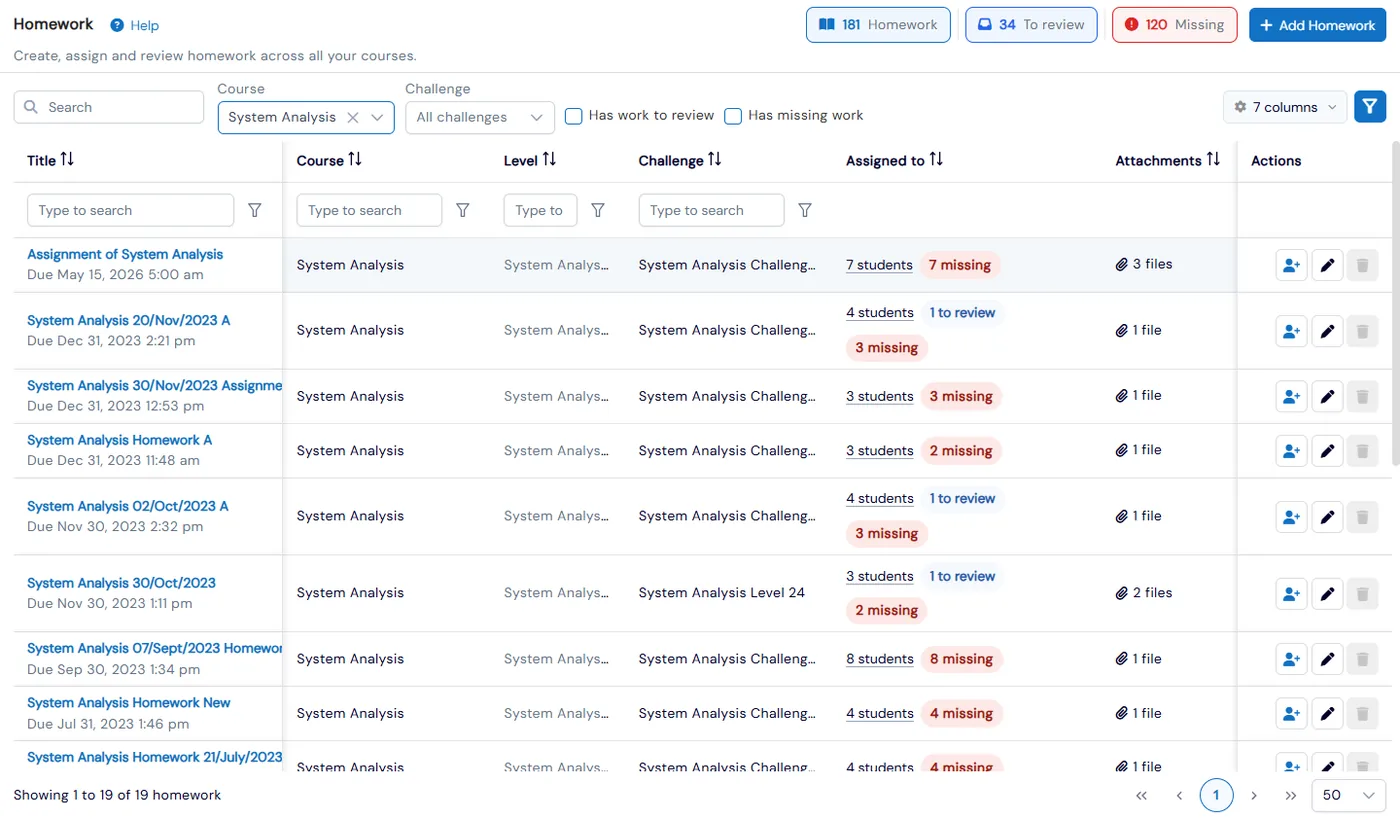
Homework in Calimatic lets staff create homework, assign it to students and review what they hand in, all from one Homework page that covers every course. Counters at the top show how many homework items you have, how much student work is waiting for review and how much is past due and still not handed in.
Students and parents open their homework from their board and work directly on the homework files on a full-screen whiteboard, or type an answer and upload a photo instead. Teachers draw and write on the same pages, add written feedback and move to the next student, and the student can fix the work and submit again.
How it works
- 1
Add homework to a course
Click Add Homework and pick the course and the challenge it belongs to. The homework is added to that challenge in your curriculum too. To save typing, start from an existing homework and copy its details and files; the copy is separate, so changing it never changes the original.
- 1
- 2
Write the instructions and assign students
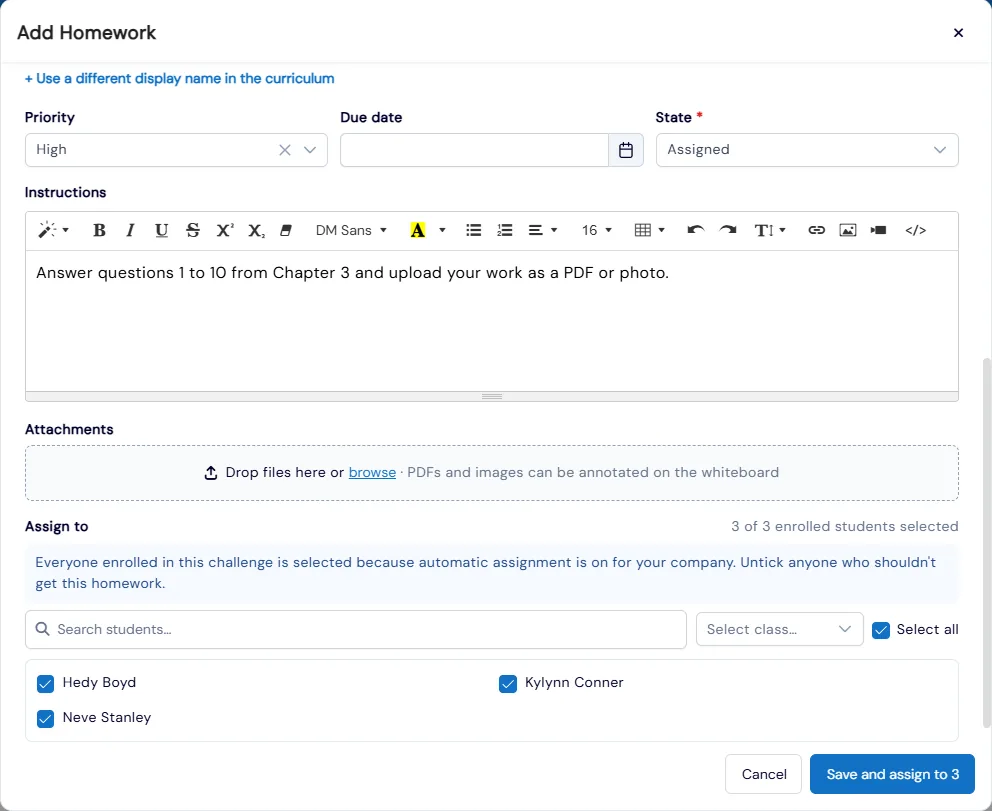
Add a title, a High, Medium or Low priority, a due date (the time is set to 11:59 PM for you) and the instructions. Attach worksheets as PDFs or images that students can draw on. Tick the students who should get it, or use Select class to tick a whole class, then click Save and assign.
- 3
Students work on the sheet and hand it in
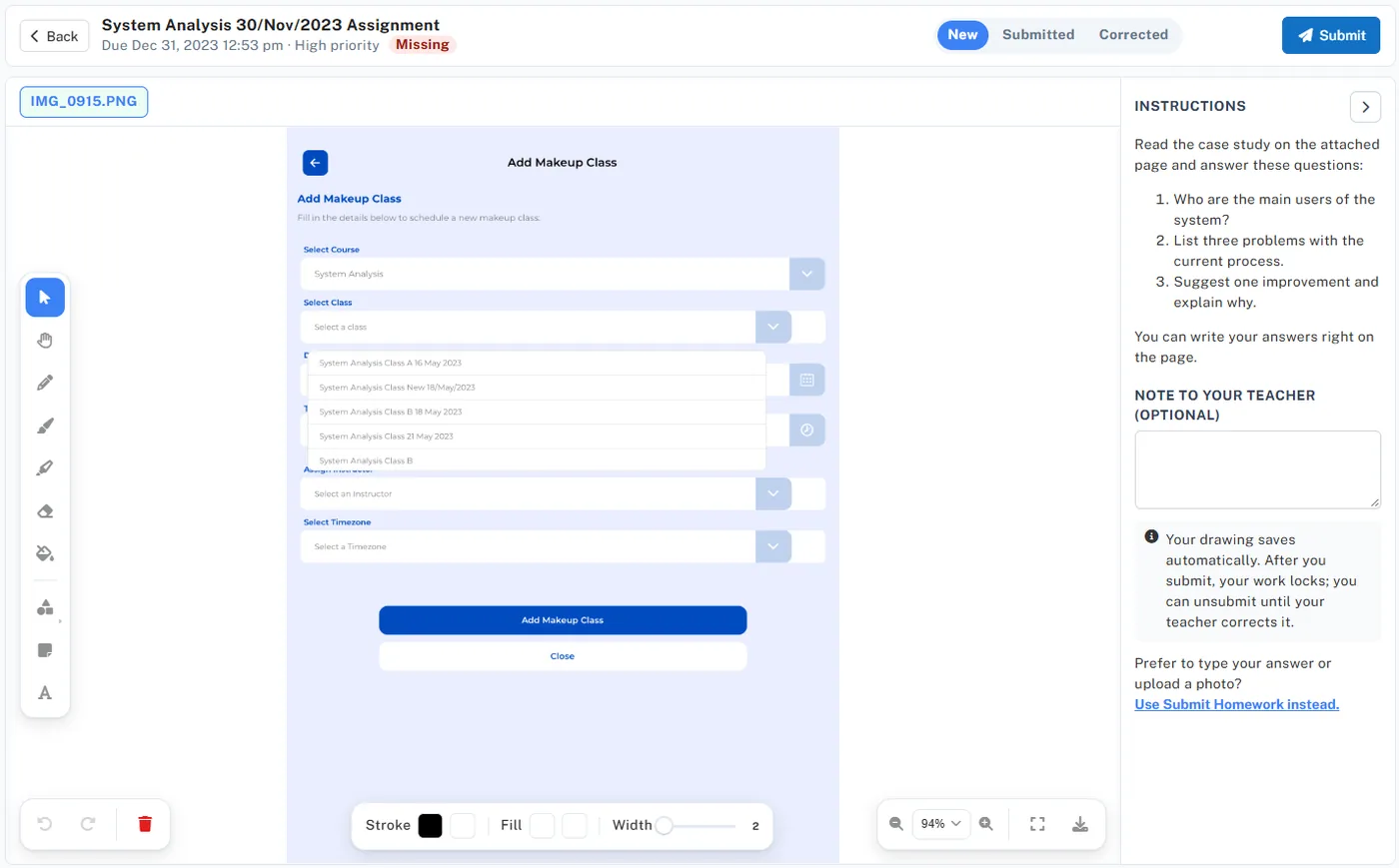
Students and parents find homework under Boards on the Homeworks tab and click Open on whiteboard. The homework files open as the background, with the teacher’s instructions, the due date, a Missing flag when it is late, and an optional note to the teacher. Drawing saves automatically, and Submit sends it in.
- 4
Review and correct on the whiteboard
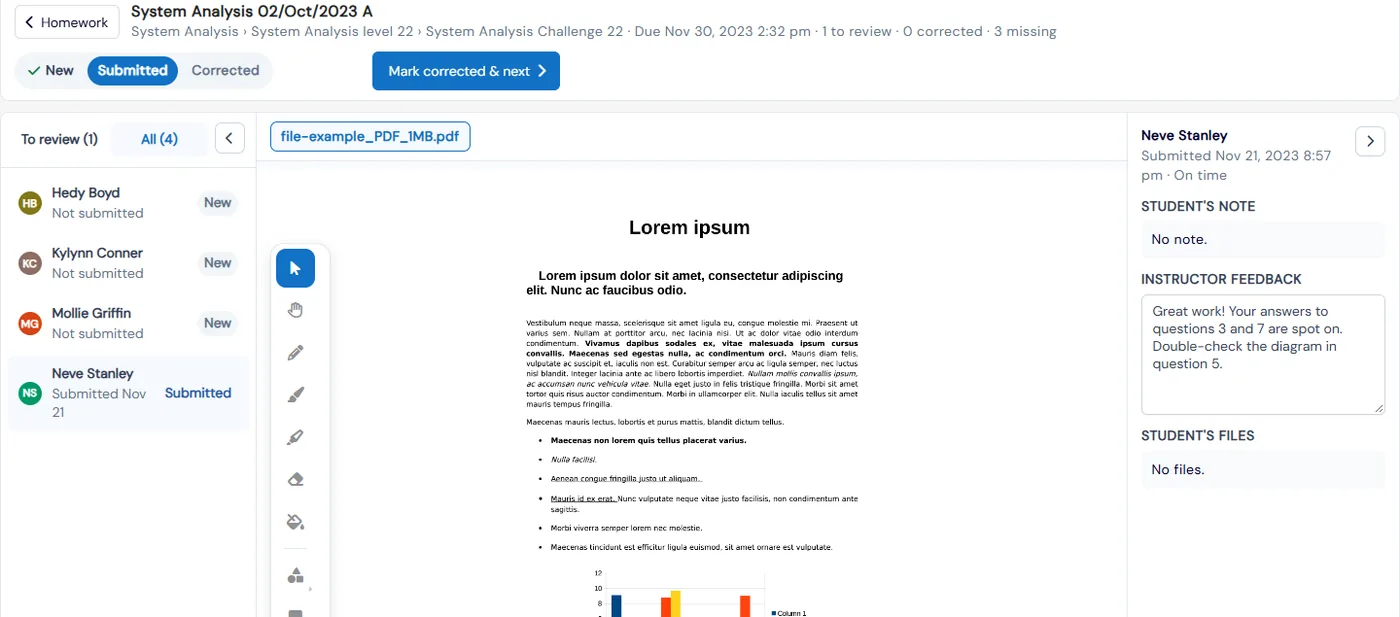
Click a blue “to review” chip to open the review screen. Work waiting for you is listed oldest first, each file opens on a whiteboard you can draw and write on, and the side panel shows whether it was on time or late, the student’s note and files. Write your feedback and click Mark corrected & next.
- 5
Follow up on missing work
Tick Has missing work, or click the Missing counter, to see homework where students are past the due date and have not handed anything in. The red “missing” count on each row shows how many students are behind, and the assignment summary inside each homework shows who has it and what is still outstanding.
- 5
What's included
- One Homework page for every course, with Homework, To review and Missing counters
- Filters by course and challenge, plus Has work to review and Has missing work
- Copy an existing homework, with its details and files, into a new one
- Priority, due date, rich-text instructions and PDF or image attachments
- Assign to individual students or a whole class, and change who has it at any time
- Students draw on homework files on a full-screen whiteboard, or type an answer and upload a photo
- Submitted work locks while the teacher reviews it, and students can unsubmit until it is corrected
- Review queue with New, Submitted, Late, Corrected and Resubmitted statuses
- Teacher markup on each page, written instructor feedback and a separate parent feedback tab
- Instructors see only homework for the courses they are assigned to
- Separate permissions to view, create, edit, delete, assign and download homework files
- Homework that students have submitted work for can’t be deleted
Part of Calimatic Learning Management System, in one white-labeled platform with enrollment, billing and the parent app.
Who uses it
Tutoring centers
Upload a worksheet as a PDF, assign it to everyone in a class, and correct each student’s answers on the page itself. The Missing counter shows who still has not handed it in.
Coding academies
Add homework to the same challenge as the lesson it belongs to, so it sits in your curriculum and on the Homework page, and students can submit a photo or typed answer from home.
Online tutoring
Students who are never in the building write on their homework on a whiteboard from home, and teachers mark it up and send feedback without printing or scanning anything.
Test prep
Set a priority and due date on each practice set, and use the review queue to work through submitted papers oldest first, with late work clearly marked.
See Homework in a live demo
Get a personalized demo. We'll show Calimatic running your programs, under your brand.
- 14-day free trial, no credit card
- White-labeled under your brand
- Live product walkthrough
Homework: FAQs
Common questions about Homework in Calimatic.
From the Blog
Building a Scalable Curriculum Across All Franchise Locations
Learn how education franchise owners create consistent, high-quality curriculum that maintains brand standards while allowing local flexibility across multiple locations.
Read articleChoosing the Right Virtual Classroom Platform for Your Tutoring Business
The wrong virtual classroom platform costs tutoring businesses thousands in lost revenue. Here's how to choose one that drives growth instead of frustration.
Read articleHow to Start an Online Tutoring Business: The Complete 2026 Guide
A step-by-step guide to launching a profitable online tutoring business in 2026, covering market research, legal setup, technology stack, pricing, marketing, hiring, and scaling strategies.
Read article