LMS with a Built-In Code Editor for Kids Coding Classes
Build your coding course as levels and challenges, add Code steps, and let students write and run code in the language they choose without leaving Calimatic. Track every challenge on a board and reward finished work with points.
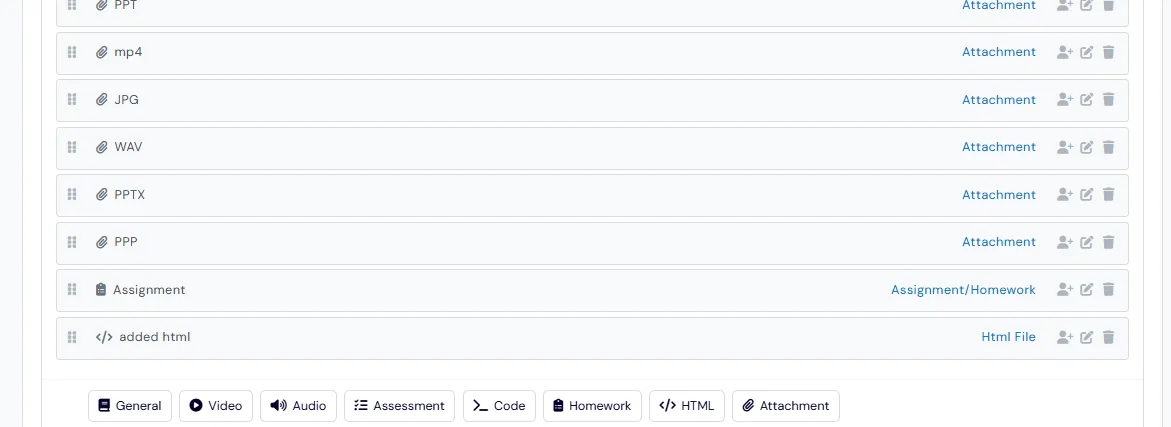
Calimatic has a built-in code runner: students write code inside the platform, choose a programming language from a dropdown and run it in that language. Courses have a Code step type for coding challenges, and the whiteboard that staff and students open from a board has a Code tab next to the drawing canvas.
For a coding academy this keeps the lesson, the code and the student record in one place. The same course holds your videos, homework and SCORM packages, the class board shows where every student is on each challenge, and the platform also runs enrollment and billing.
How it works
- 1
Lay out the course as levels and challenges
Open a course’s Curriculum tab and add Levels, Challenges inside them, and Steps inside each Challenge. Drag handles reorder every tier, and the terms can be renamed system-wide, for example to Unit or Module.
- 2
Add Code steps for coding challenges
Inside a challenge, pick Code to add a coding challenge, alongside General, Video, Audio, Assessment, Homework, HTML or SCORM, and Attachment steps. Click any step to preview it full-screen with Previous and Next buttons.
- 3
Students write and run their code
Students write code directly in the application, choose the language from a dropdown and run it in that language. They only see the steps assigned to them in the Course Player.
- 1
- 4
Teach from the class board
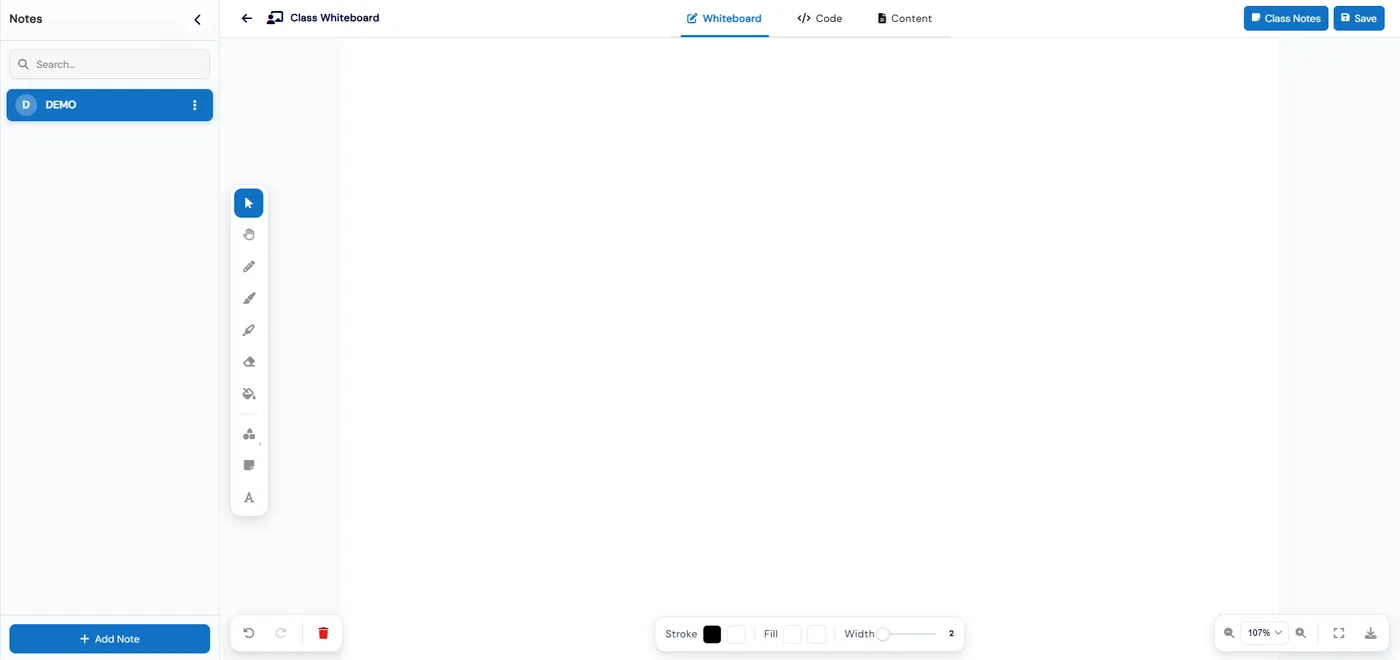
Each Class Board opens the Class Whiteboard, with Whiteboard, Code and Content tabs and a Notes panel, and the class’s Code Board. From the same board you start the online class in Calimatic, Zoom or Google Meet, take attendance and add class notes.
- 5
Track challenges and award points
Assign a challenge to the whole class in one click, or to one student from their board. Drag cards from New to In Progress, Under Review and Completed. When a challenge carries points, the student earns them on completion, and staff can add bonus points that students redeem for rewards.
- 5
What's included
- Write and run code inside Calimatic, with the language chosen from a dropdown
- Code step type for coding challenges in any course
- Code tab on the student and class whiteboards, next to Whiteboard and Content
- Code Board for each class, opened from the Class Board
- Level, Challenge and Step structure with renameable terms
- Video, audio, homework, HTML and SCORM, and attachment steps in the same course
- Students see only the steps assigned to them
- One-click challenge assignment to a whole class
- Student and class boards with New, In Progress, Under Review and Completed columns
- Points on challenges, plus bonus and redeem points
- Online classes in Calimatic, Zoom or Google Meet, started from the class board
Part of Calimatic Learning Management System, in one white-labeled platform with enrollment, billing and the parent app.
Who uses it
Coding academies
Run each track as a course of levels and challenges, with Code steps students solve in the language the lesson uses.
STEM enrichment programs
Mix coding challenges with video, worksheets and homework in one course, and see each student’s progress on the class board.
STEM learning centers
Keep project files, code and class notes together, and reward finished challenges with points students can redeem.
After-school coding clubs
Assign the week’s challenge to the whole club in one click and run the session from the Class Board.
See Coding Challenges & Code Editor in a live demo
Get a personalized demo. We'll show Calimatic running your programs, under your brand.
- 14-day free trial, no credit card
- White-labeled under your brand
- Live product walkthrough
Coding Challenges & Code Editor: FAQs
Common questions about Coding Challenges & Code Editor in Calimatic.
From the Blog
How to Track Student Progress and Showcase Achievements Effectively
Learn proven methods to monitor student growth, communicate progress to parents, and celebrate achievements that boost retention and referrals at your activity center.
Read articleHow Education Businesses Use AI to Personalize Learning
Real examples of how tutoring centers, franchises, and activity programs are implementing AI to customize instruction and dramatically improve student outcomes.
Read articleActivity Center Marketing: Local SEO & Community Strategies That Work
Discover proven local SEO tactics and community engagement strategies that help activity centers fill classes, increase enrollments, and build lasting relationships with families in their neighborhoods.
Read article