Lead Management Software for Learning Centers and Tutoring Inquiries
Every inquiry lands in one list with its source, status and owner. Move leads across your own stages, log calls, book trial classes, and convert a family to an account when they are ready to enroll.
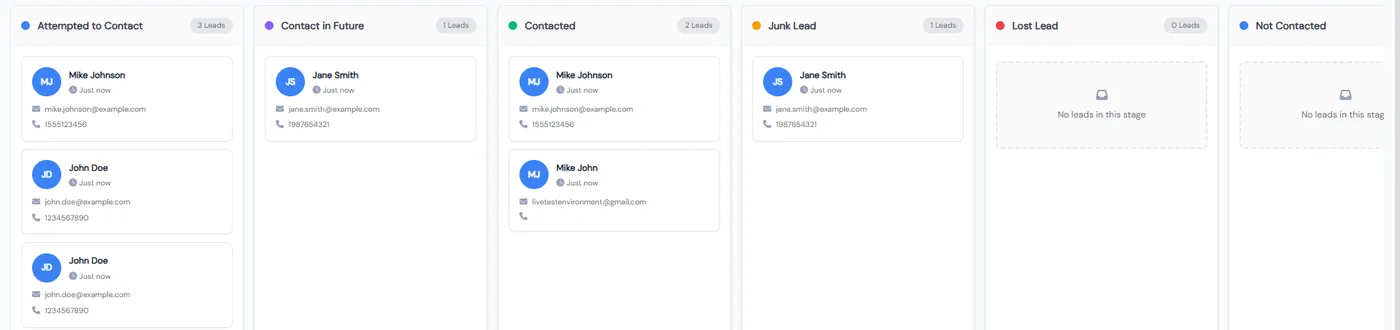
Lead management in Calimatic is the CRM Leads page, where every enrollment inquiry is kept as a lead with its contact details, children, source, status, owner, notes and messages, until you convert it into a family account. Leads arrive from your contact forms, free trial bookings, Meta lead ads, party guest lists and spreadsheet imports, or staff add them by hand.
You work the list in a Table view or a Board view with a column for each status, and drag a card to move it to the next stage. Each lead has an owner, a Follow-Up timeline of emails, texts and logged calls, and a Trials tab, and the Follow-Up Scorecard shows whether new leads are hearing from a person fast enough.
How it works
- 1
Bring every inquiry into one list
Click New Lead to add one by hand with contact details, lead type (such as a parent with child details), lead source, status, notes and attachments. Import a CSV or Excel file and map its fields, or connect a Meta app so Facebook and Instagram lead ads sync in and show the form name as the source. Lead forms, the free trial widget and party guest lists create leads too.
- 2
Set up your own sources and stages
Add the lead sources and lead statuses that match how you enroll, for example New, Contacted, Contact in Future and Converted. Board view shows a column per status, and dragging a card to another column updates its status straight away. Search the board by name, phone or email, and select many leads to change their source and type in one go.
- 1
- 3
Give each lead an owner and follow up
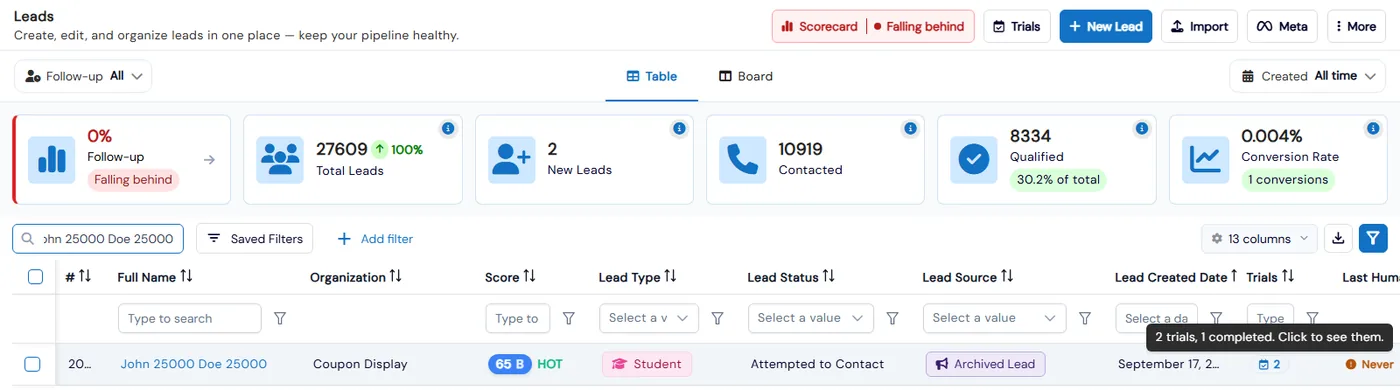
Pick an owner on the lead, or tick several leads in the grid and choose Assign Owner. From the lead, send an email or text from your templates, attach files from your device, Google Drive or Dropbox, and use Log a call on the Follow-Up tab so phone calls appear on the timeline with the emails and texts.
- 4
Book trial classes on the lead
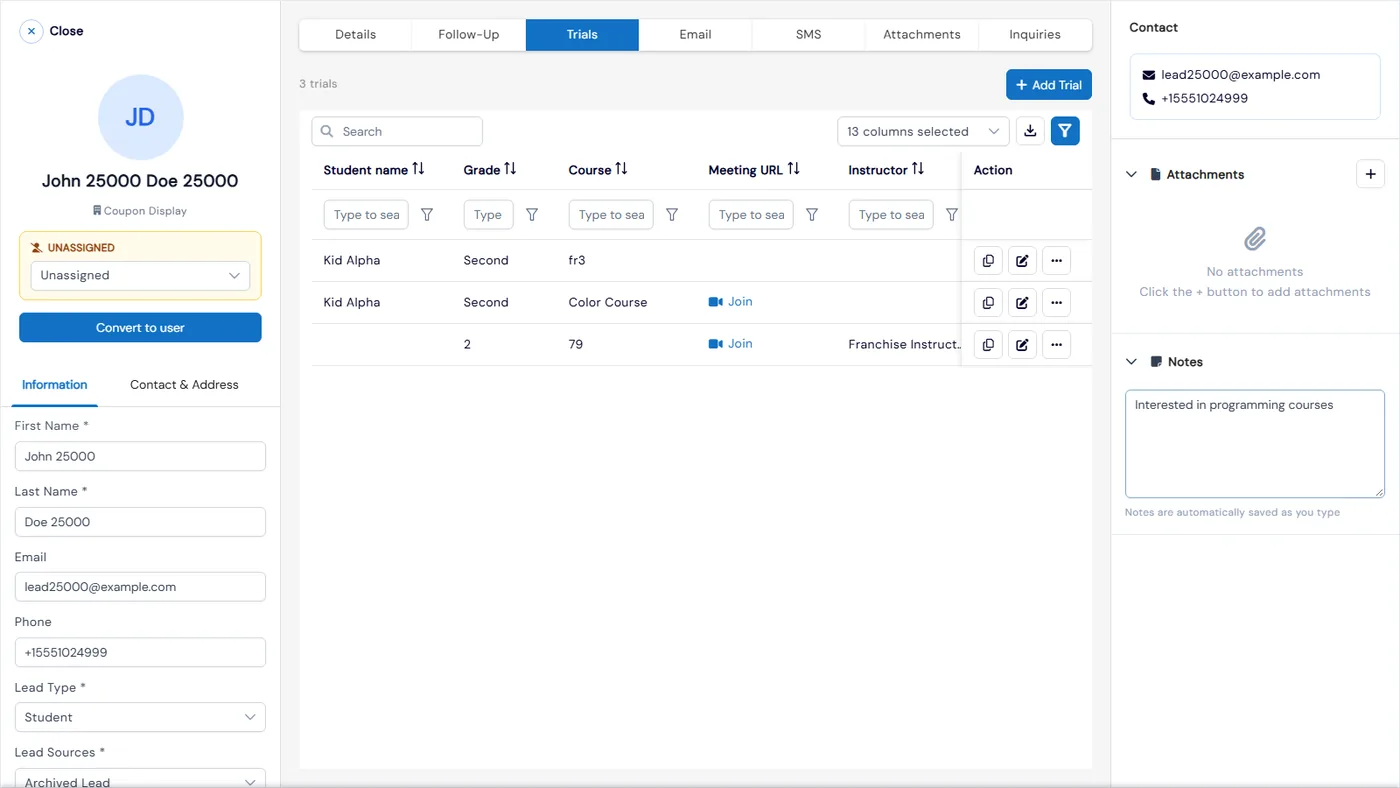
Add a trial from the lead’s row or its Trials tab with the student, grade, course, meeting link, instructor and the family’s timezone. The Trials column shows how many trials each lead has, and you mark each trial completed, no-show or cancelled.
- 5
Convert the family when they enroll
Add the children to a parent lead with Add Kid, then click Convert to user to create the family account with the lead’s contact details. The Families Info grid records the conversion date, and if one family sent several inquiries, they can be converted together.
- 5
What's included
- Table view and Board view with a column for each lead status, plus drag and drop between stages
- Your own lead sources and lead statuses
- Manual entry with lead type, child details, source, status, notes and attachments
- CSV and Excel import with field mapping, and Meta lead ads synced with the form name as source
- Lead owner on every lead, assigned one at a time or in bulk, with an Owner column to find unassigned leads
- Email and SMS from the lead using your templates
- Follow-Up tab with emails, texts and logged phone calls on one timeline
- Trials tab and Trials count on every lead, with completed, no-show and cancelled statuses
- Duplicate detection that links repeat inquiries from the same person without deleting any
- Quick date filters, board search and bulk update of lead source and lead type
- Add children to a parent lead and Convert to user to create the family account
- Follow-Up Scorecard with speed to lead, contact rate, follow-up persistence and conversion rate
Part of Calimatic CRM, in one white-labeled platform with enrollment, billing and the parent app.
Who uses it
Tutoring centers
Book an assessment or trial lesson on the lead with the grade, course, instructor and the family’s timezone, then mark it completed or no-show and convert the family once they sign up.
Coding academies
Run online trial classes with a meeting link on each trial. The Trials list shows the time in the family’s timezone and in yours, so instructors know when to join.
After-school programs
Import a list of families from a school fair as leads, give each one an owner, and work them across your own stages on the board until they enroll.
Franchise networks
Head office sees the Follow-Up Scorecard for every location, with a verdict per franchise and the number of leads never contacted or without an owner.
See Lead Management in a live demo
Get a personalized demo. We'll show Calimatic running your programs, under your brand.
- 14-day free trial, no credit card
- White-labeled under your brand
- Live product walkthrough
Lead Management: FAQs
Common questions about Lead Management in Calimatic.
From the Blog
Franchise Operations Manual: How to Create One for Your Education Business
A section-by-section guide to writing an operations manual for an education franchise: what to include, how to make standards measurable, and how to keep franchisees actually using it.
Read articleCRM for Education: Converting Inquiries Into Enrolled Students
Learn how education businesses use CRM systems to track leads, automate follow-ups, and convert more inquiries into paying students.
Read articleTechnology Stack Every Education Franchise Needs to Scale Efficiently
Growing an education franchise beyond 3-5 locations? Here's the exact tech infrastructure you need to maintain quality, track revenue, and scale without chaos.
Read article