Marketing Automation for Learning Centers, Tutoring Centers and Studios
Answer every new inquiry in minutes, follow up by email and text over the next days, alert your team, and stop the moment the parent replies. Start from ready-made workflows with the messages already written.
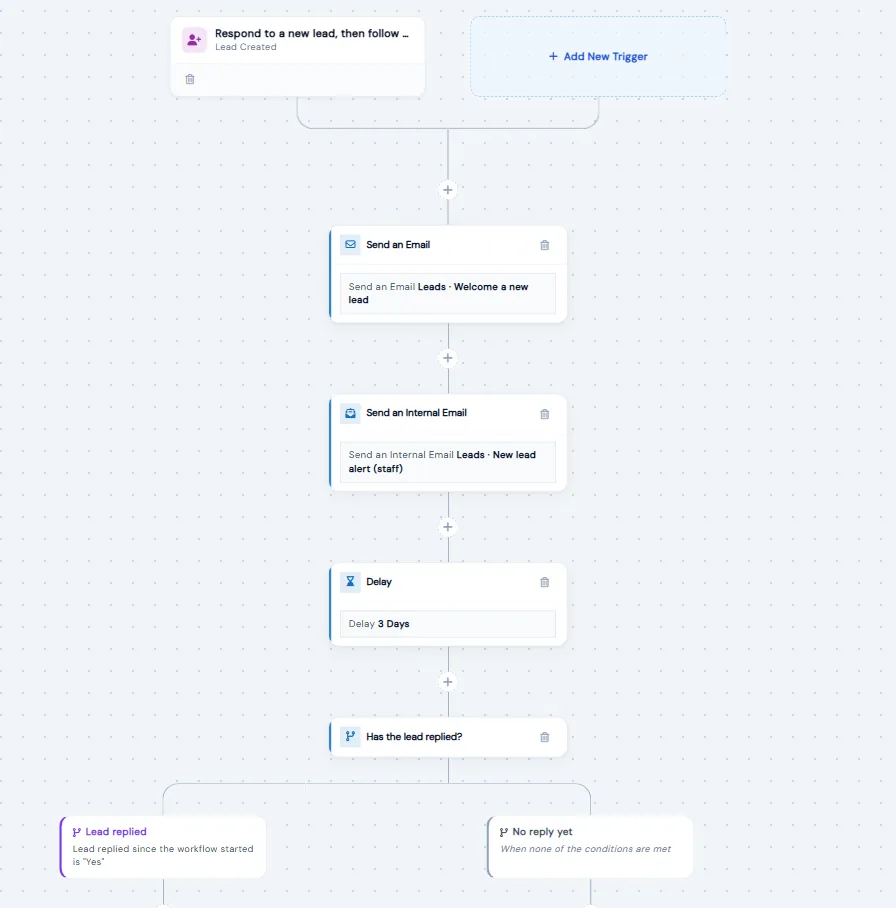
Automation Studio is the part of the Calimatic CRM that sends emails and texts for you when something happens, such as a new lead coming in, a lead changing status or a lead becoming a family. You build each workflow on a visual canvas from triggers, messages, delays and If/Else checks, or start from a ready-made workflow that already has the steps and the wording in place.
For lead nurturing, the key piece is the reply check. A workflow can see whether the parent has replied by email, texted back or called, and end right there, so families who already answered stop getting automated messages and your team takes over the conversation. Every run is logged, and the lead's timeline shows what was sent and why it stopped.
How it works
- 1
Start from a ready-made lead workflow
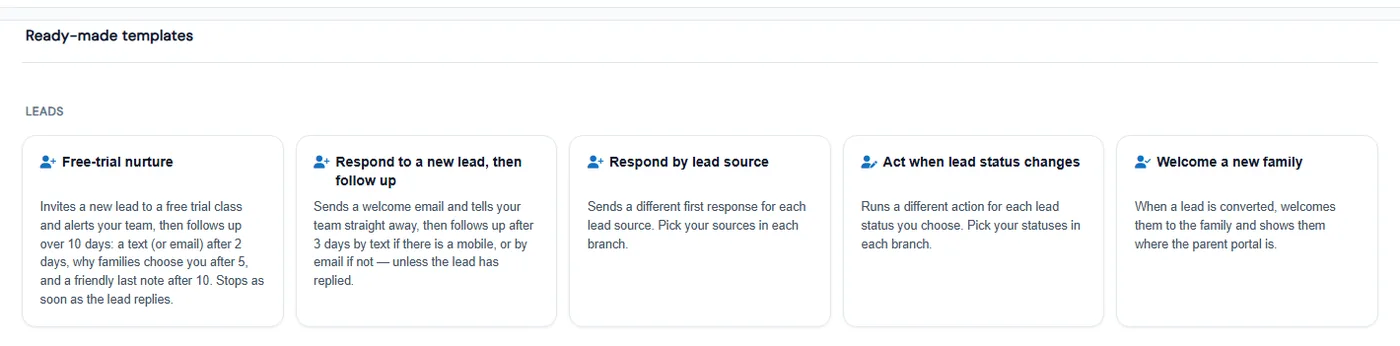
Open CRM, Automation and scroll to Ready-made templates. Lead templates include Free-trial nurture, Respond to a new lead then follow up, Respond by lead source, Act when lead status changes and Welcome a new family. Picking one opens a draft with every step, email, text and staff alert already filled in. Nothing sends until you save it and switch it to Active.
- 2
Choose what starts it and which leads it runs for
Lead triggers are Created, Updated, Deleted and Converted to User. Filter the trigger on standard fields such as email or phone, or on custom fields from your contact forms, and combine filters with AND or OR. On Lead Updated you can check whether a field has changed, and from what to what. One workflow can have several triggers that share the same steps.
- 3
Build the follow-up: messages, alerts and waits
Add Send Email, which fills in the lead as the recipient, or Send SMS from a template. Add an internal email or text to alert staff by role or by name. Put a delay between messages, from 15 seconds to a month, and use If/Else to branch, for example a text if the lead has a mobile number and an email if not. Leads that match no branch go to a None branch.
- 2
- 4
Stop when the parent replies
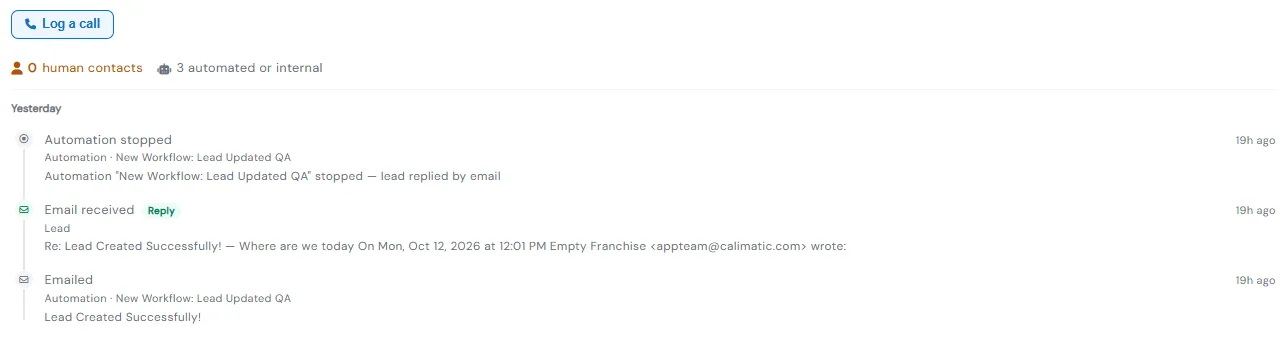
Add a Delay, then an If/Else check on Lead replied since the last message, Lead replied since the workflow started or How the lead last replied, and put End workflow on the Yes path. Email reply tracking is already set up, and replies still reach your inbox. The lead's Follow-Up timeline shows an Automation stopped entry with the reason.
- 5
Check every run and how your team follows up
Each workflow's Execution Logs tab keeps 30 days of runs, showing each trigger check, each message as passed, failed or skipped, and who received it. The Follow-Up Scorecard on the Leads page flags leads that only got automated messages, so you can see which ones still need a call or a personal reply from your team.
- 5
What's included
- Visual workflow canvas with triggers, actions, delays and If/Else branches
- Ready-made lead workflows with emails, texts and staff alerts already written
- Lead triggers for created, updated, deleted and converted to user
- Trigger filters on standard fields and contact form custom fields, with AND/OR
- Emails to the lead, with options to copy parents, add CC or BCC, or send to groups
- SMS from your templates, plus internal emails and texts to staff by role or by name
- Delays from 15 seconds to 1 month, or any custom length
- Lead replied checks and an End workflow step to stop when a parent answers
- Email reply tracking already set up, or on your own domain through your SendGrid account
- Execution logs for 30 days with a pass, fail or skipped result for every step
- Automated messages, replies and Automation stopped entries on each lead's timeline
- Copy workflows to franchises, and view each franchise's workflows and run history
Part of Calimatic CRM, in one white-labeled platform with enrollment, billing and the parent app.
Who uses it
Tutoring centers
Use Free-trial nurture to invite a new lead to a trial class and alert your team, then follow up over 10 days by text or email, ending as soon as the parent replies.
Dance studios
Send a different first reply to leads from each source you track, and run a different action for each lead status you choose.
Learning center franchises
Build a follow-up workflow once, copy it to every franchise, and see each location's workflows and run history from the business account.
After-school programs
Go past leads with ready-made workflows such as Welcome a new family, We missed you today and Re-enroll before a class ends.
See Marketing Automation in a live demo
Get a personalized demo. We'll show Calimatic running your programs, under your brand.
- 14-day free trial, no credit card
- White-labeled under your brand
- Live product walkthrough
Marketing Automation: FAQs
Common questions about Marketing Automation in Calimatic.
From the Blog
How to Increase Enrollment at Your Learning Center: 12 Proven Strategies
Fix follow-up first, then add lead sources. 12 proven strategies to increase learning center enrollment, with funnel math, sample scripts, ad budgets, and a 90-day plan.
Read articleParent Communication Tools That Improve Satisfaction and Reduce Churn
Discover how modern communication strategies and technology can transform parent relationships, improve retention, and turn satisfied families into your best marketing asset.
Read articleHow Dance Studios, Swim Schools & Martial Arts Centers Streamline Operations
Activity centers waste 15+ hours weekly on admin tasks. Discover proven strategies dance studios, swim schools, and martial arts centers use to automate operations and increase revenue.
Read article