Franchise Inventory Ordering for Franchisee Supply Purchases
Keep one catalog of the supplies you sell to your locations. Franchisees order and pay from their own account, and your team sees what needs shipping, what has sold and every payment.
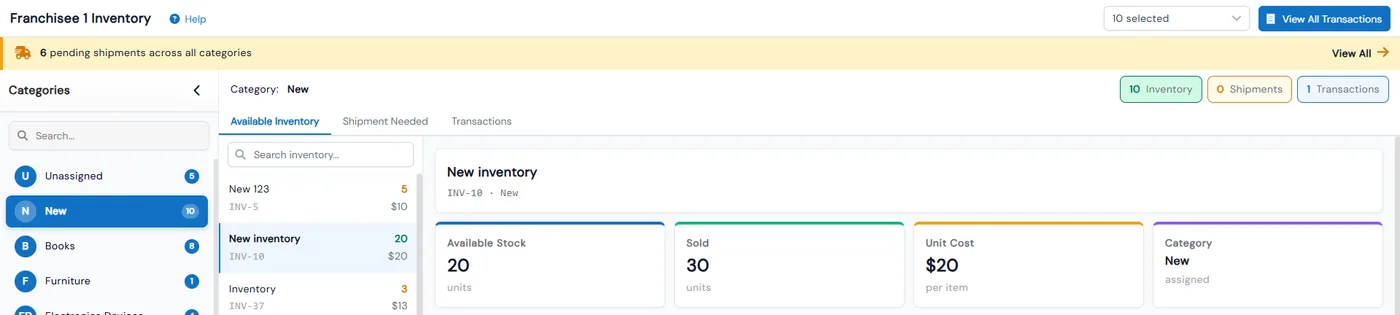
Franchise inventory ordering in Calimatic is a supply store between head office and its franchises. Head office builds a catalog of items with categories, costs and stock, franchise admins browse it, add items to a cart and pay at checkout, and head office marks each order as it ships. It lives under Franchises → Inventory, inside the same account you use to run the rest of the franchise network.
The page looks different depending on who opens it. Head office sees available stock, orders waiting to ship and transactions across every franchise. A franchise sees a shopping view with a cart, its own pending and completed orders, and its own transaction history with receipts.
How it works
- 1
Build the catalog
Under Franchises → Setup → Inventory, click Manage Categories to organize items and Add Inventory to create one. Each item tracks its cost, available quantity (total minus sold), sold count and tags. Items without a category sit in a built-in Unassigned bucket, and an item that has already sold cannot be deleted.
- 1
- 2
Franchisees browse and add to cart
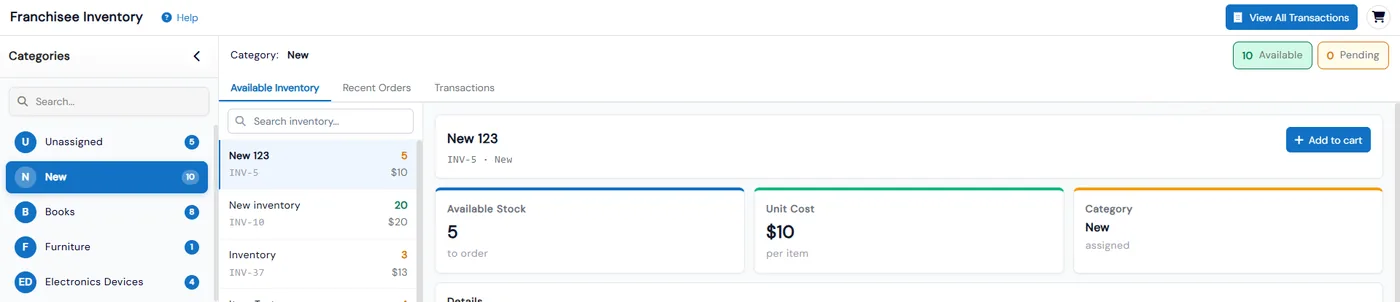
A franchise admin opens Franchises → Inventory, picks a category and opens an item to see its available stock, unit cost, category, description, discussion thread and attachments. Add to cart adds it straight away, and a badge on the cart icon in the header counts the items.
- 3
Check out and pay
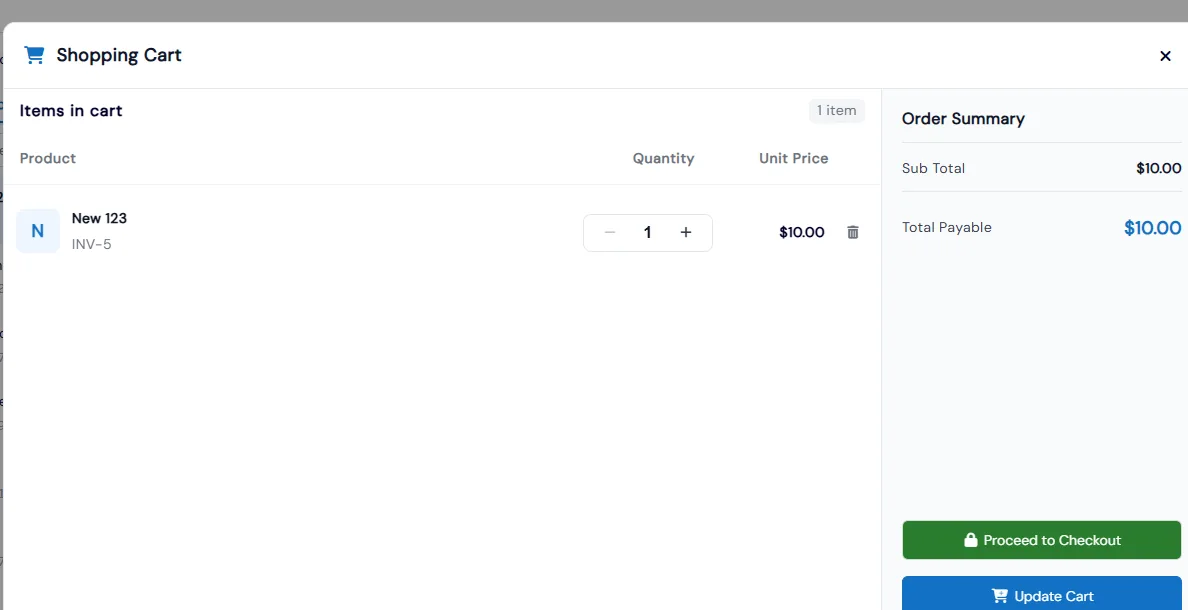
The cart lists each item with a quantity stepper capped at available stock, a remove icon, a sub total and the total payable. Proceed to Checkout shows a Confirm Payment prompt with the total before the franchise clicks Yes, Pay Now.
- 4
Ship orders from head office
A banner tells your team how many shipments are pending. Shipment Needed lists each order with its invoice ID, franchise, item, ordered quantity, amount paid, purchase date and status. Use Update Status on the row as the order moves along, or View Transaction to see the payment.

- 5
Track orders and payments on both sides
Franchises switch between Pending Orders, with a Pending for Shipped count, and Completed Orders, with the received quantity. Both sides get a Transactions tab with date filters, payment method, transaction key, status and a receipt link. Head office can filter by franchise and open View All Transactions for the franchises selected.
- 5
What's included
- Supply catalog with categories, a built-in Unassigned bucket and tags
- Cost, available quantity and sold count tracked for every item
- Description, discussion thread and attachments on each item, visible to head office and franchises
- Shopping view for franchise admins with a cart and live item count
- Cart quantities capped at available stock
- Confirm Payment step showing the total before a franchise pays
- Shipment Needed list with Update Status for each order
- Pending-shipments banner for head office
- Pending and completed orders for each franchise, with shipped and received quantities
- Transactions with receipts and line items for both head office and franchises
- Franchise filter and View All Transactions for orders across locations
- Items that have sold cannot be deleted, so order history stays intact
Part of Calimatic Franchise Management, in one white-labeled platform with enrollment, billing and the parent app.
Who uses it
Learning center franchises
List the books and classroom supplies your locations buy from you, and let each franchise order what it needs without emailing head office a list.
Education franchise networks
See every franchise order waiting to ship in one list, update its status as it goes out, and keep a receipt for each payment.
Martial arts franchises
Keep the items your schools reorder in one catalog with live stock, so a franchise cannot order more than you have available.
Multi-location operators
Filter inventory transactions by location to see what each center has bought from head office over a date range.
See Franchise Inventory Ordering in a live demo
Get a personalized demo. We'll show Calimatic running your programs, under your brand.
- 14-day free trial, no credit card
- White-labeled under your brand
- Live product walkthrough
Franchise Inventory Ordering: FAQs
Common questions about Franchise Inventory Ordering in Calimatic.
From the Blog
Multi-Location Management: Keeping Quality Consistent Across Franchises
Running multiple education locations? Learn proven strategies franchise owners use to maintain teaching quality, standardize operations, and scale successfully.
Read articleFranchise Operations Manual: How to Create One for Your Education Business
A section-by-section guide to writing an operations manual for an education franchise: what to include, how to make standards measurable, and how to keep franchisees actually using it.
Read articleHow to Recruit and Onboard Franchisees for Your Education Business
A proven step-by-step framework for attracting qualified franchise candidates and setting them up for success from day one.
Read article