Franchise Royalty Software for Fees, ACH Billing and Revenue Share
Set up royalty, license and training fees for your franchisees, collect them by bank account or card, and take a set percentage of franchise course sales as they happen. Every payment lands in one transaction list.
Royalty and fee billing in Calimatic is how a franchisor charges its franchisees. Under Franchises → Billing you set up flat or recurring fees, such as a royalty, license or training fee, choose whether franchisees pay by bank account (ACH), credit card or both, and collect each billing interval when it falls due. Enrollment deductions take a set percentage of a franchise’s course sales on your website and send it to your business account automatically.
Each franchise logs in to its own My Billing page, sees plain notes on the fees and deductions set up for it, and saves its card or bank account. Head office sees which franchises have a payment method on file, which fee intervals are overdue, and every payment in one list with receipts. The business dashboard shows franchise fee collection next to enrollment deductions and payouts.
How it works
- 1
Choose how franchisees pay and add your fees
On Payment Options, accept Bank Account (ACH), Credit Card or both. Then click Add Fee, pick the franchises it applies to, and enter a fee name and amount. Turn on Is Recurring to bill it weekly, monthly, yearly or on a custom interval with start and end dates, and choose the bank account the fee is deposited into.
- 1
- 2
Take a share of franchise course sales automatically
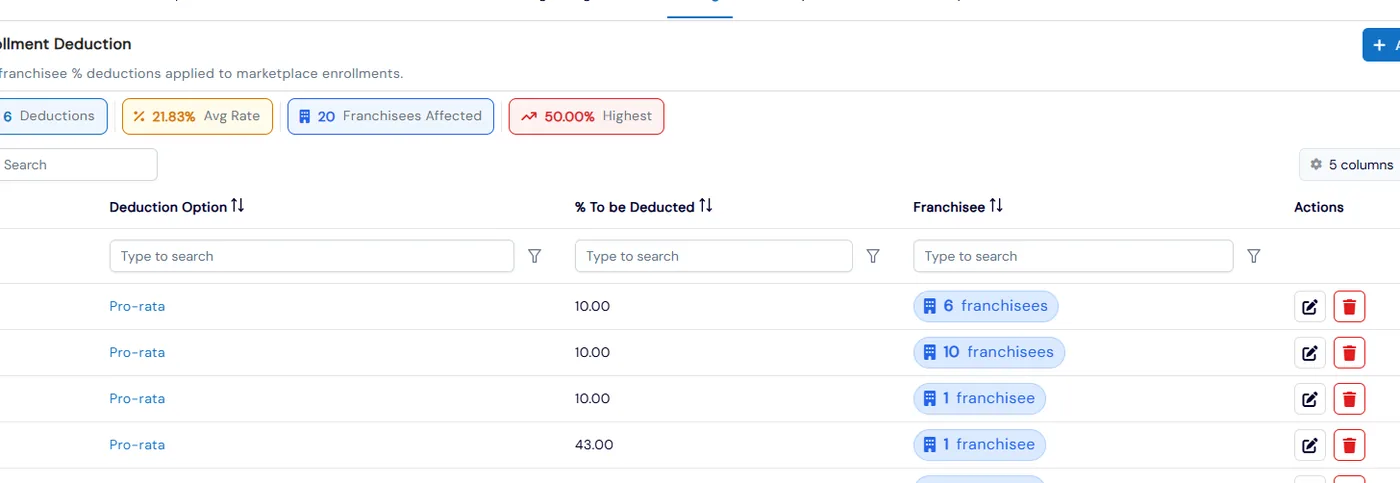
On Enrollments Deduction, click Add Deduction, choose the franchises and the percentage to deduct. Pick a single franchise and you can limit the rule to one course. From then on that percentage is taken from every matching enrollment sold through your website and sent to your business account, with no separate bill.
- 3
Franchisees see their fees and save a payment method
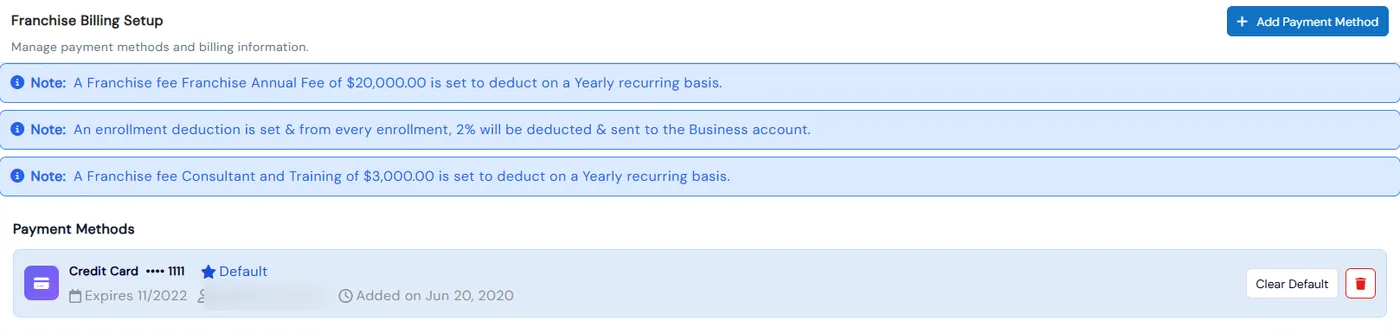
A franchise opens My Billing and reads notes on each fee and deduction set up for it, then adds a card or bank account and marks one as default. On your side, the Franchise Billing Information grid shows which franchises have a card or ACH account on file, the last four digits and when it was added.
- 4
Collect what is due
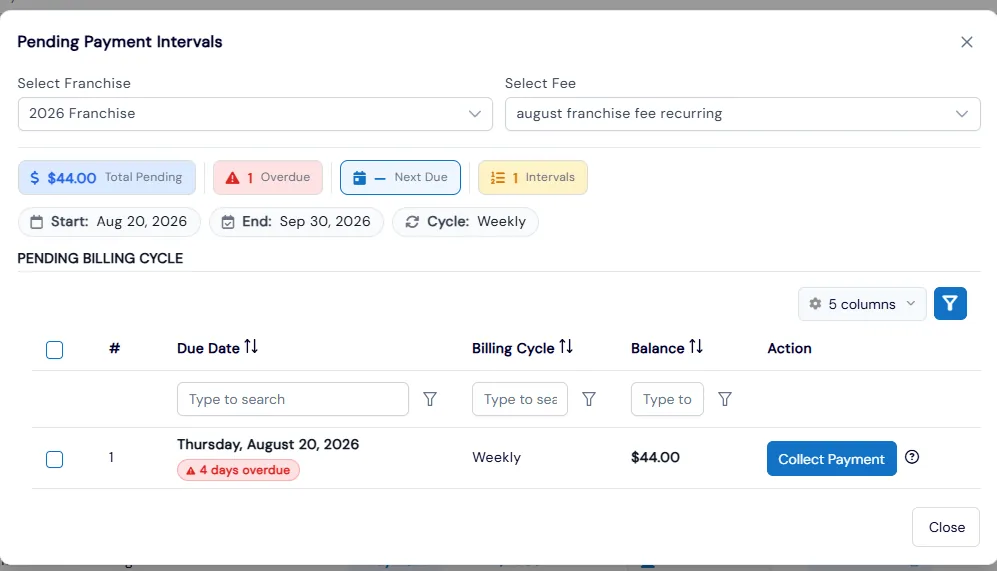
Open Pending Payments, pick a franchise and one of its recurring fees, and see every billing interval with its due date, balance and an Overdue, Due Today or Upcoming status. Collect one interval with Collect Payment, or tick several and use Collect Selected to charge them one after another.
- 5
Review every payment
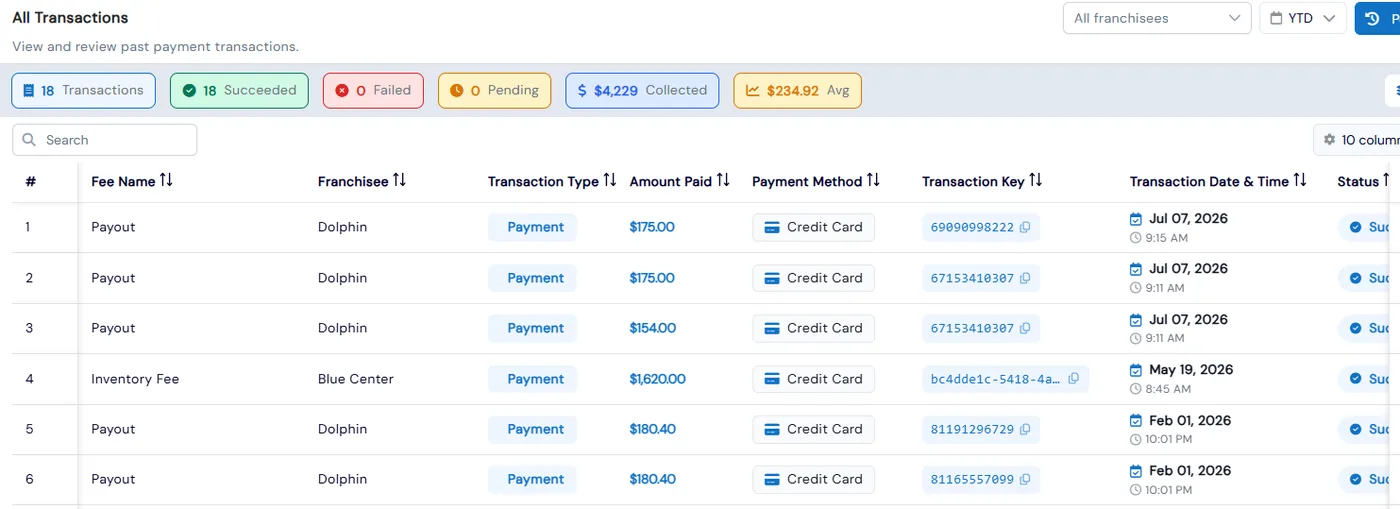
All Transactions lists every fee payment and refund with the fee name, franchise, amount, payment method, a copyable transaction key, date, status and receipt. Filter by franchise and by Today, the last 7, 30 or 90 days, year to date or a custom range, and click Succeeded, Failed or Pending to filter by status.
- 5
What's included
- Flat or recurring franchise fees, billed weekly, monthly, yearly or on a custom interval
- Fees applied to one, several or all franchises, each deposited into the bank account you choose
- Bank account (ACH) and credit card payments from franchisees
- Enrollment deductions that send a percentage of franchise course sales to your business account
- Deduction rules scoped to chosen franchises, or to one course for a single franchise
- My Billing page where each franchise sees its fees and manages its own payment methods
- Billing information grid showing which franchises have a card or ACH account on file
- Pending Payments with Overdue, Due Today and Upcoming intervals, collected one at a time or in bulk
- All Transactions with succeeded, failed and pending counts, amount collected and average payment
- Receipts and copyable transaction keys on every payment
- Dashboard chart of franchise fee collection alongside enrollment deductions and payouts
- A view of both sides for a franchise that also runs its own connected franchises
Part of Calimatic Franchise Management, in one white-labeled platform with enrollment, billing and the parent app.
Who uses it
Learning center franchises
Charge each new franchisee an annual license fee and a monthly royalty from the same Billing screen, and see at a glance which franchisees still have no payment method on file.
Tutoring franchises
When franchise locations sell courses through your website, an enrollment deduction sends your percentage of each sale to head office as the enrollment happens.
Education franchise networks
Bill a training or consulting fee to only the franchises it applies to, and follow up on overdue intervals from Pending Payments.
Multi-location operators
A location that runs its own connected franchises switches between paying its own fees in My Billing and billing the franchises under it.
See Royalty & Fee Billing in a live demo
Get a personalized demo. We'll show Calimatic running your programs, under your brand.
- 14-day free trial, no credit card
- White-labeled under your brand
- Live product walkthrough
Royalty & Fee Billing: FAQs
Common questions about Royalty & Fee Billing in Calimatic.
From the Blog
Franchise Royalty Tracking and Reporting: A Guide for Education Brands
A comprehensive guide to franchise royalty tracking for education brands, covering royalty models, automated reporting, per-location P&L visibility, compliance, and the challenges of manual tracking.
Read articleHow to Forecast Monthly Revenue for a Learning or Activity Center
Stop guessing at next month's income. Learn a step-by-step method to forecast revenue for your learning or activity center using enrollment, churn, and pipeline data.
Read articleHow to Automate Billing and Reduce Late Payments in Education
Education businesses lose thousands monthly to late payments and manual billing errors. Learn how automation can recover that revenue and save hours each week.
Read article