Protect Your Curriculum from Being Copied with a Geofenced LMS
Secure curriculum files open only near the locations you register. Flag or block access from unknown addresses and outside class hours, decide which files can be downloaded, and approve exceptions from head office.
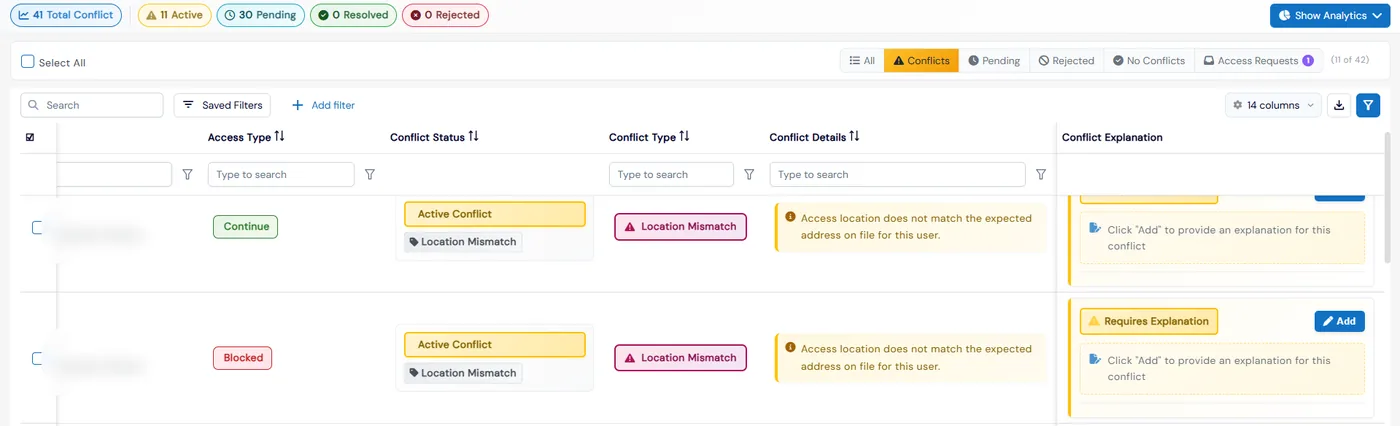
Curriculum Protection in Calimatic checks where a user is before they can open a secure curriculum file, and blocks the file when they are outside the radius of your registered locations. It can also flag access from addresses you do not recognize, outside scheduled class or camp hours, or with a student count that does not match the class, and logs every conflict for head office to review.
Your curriculum is what franchisees pay for, so it should be taught in your centers and not passed around. Geofencing is set per organization, so head office sees every franchise in one grid. Downloads are switched on or off per curriculum item, and when someone is blocked for a good reason, the roles you choose can grant them temporary access.
How it works
- 1
Register your locations and set the radius
Admin → Geofencing lists head office and every franchise in one grid. Click Edit on a row to add its locations: search for the address on the map and the coordinates fill in. In Settings, set the geofencing radius in miles. It is one company-wide distance, checked against every location an organization has.
- 2
Choose how strict each organization is
Each organization has its own switches. Geofence checks distance. Count Conflict asks staff to confirm the student count before opening curriculum and checks it against class schedules and enrollments. Time Count Conflict flags access outside scheduled class or camp hours. Address Conflict flags addresses not found on franchise, staff, partner or family profiles, and Address Block stops them outright.
- 1
- 3
Users outside the area are stopped
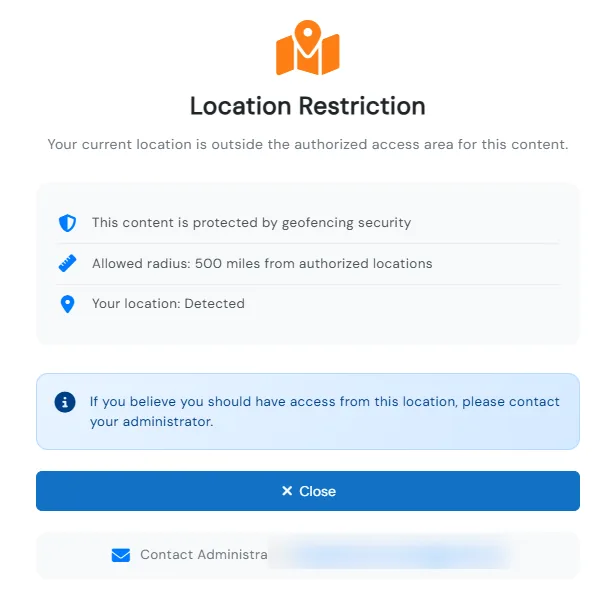
Opening a secure file checks the user’s GPS position against the organization’s locations, and being within the radius of any one of them is enough. Outside all of them, a Location Restriction screen shows the allowed radius and a link to email the administrator. With Address Block on, an Address Verification Failed screen shows the reason and lets the user request temporary access.
- 4
Review conflicts and get alerts
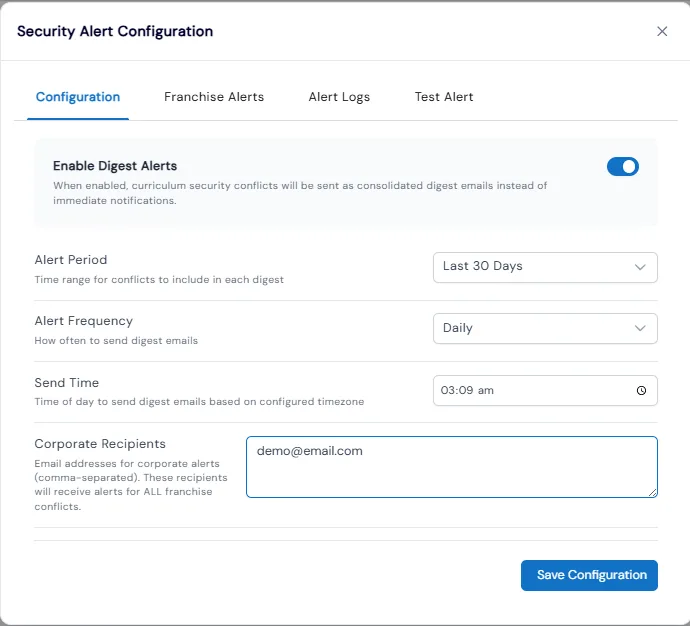
Accessed Locations logs who opened which document, when, from where and with how many students, filtered by Conflicts, Pending, Rejected, No Conflicts or Access Requests. Franchises add explanations, one at a time or in a batch, and Business Admins approve or reject them. Digest emails send conflicts to head office and to each franchise on the schedule you set.
- 5
Approve temporary access when it makes sense
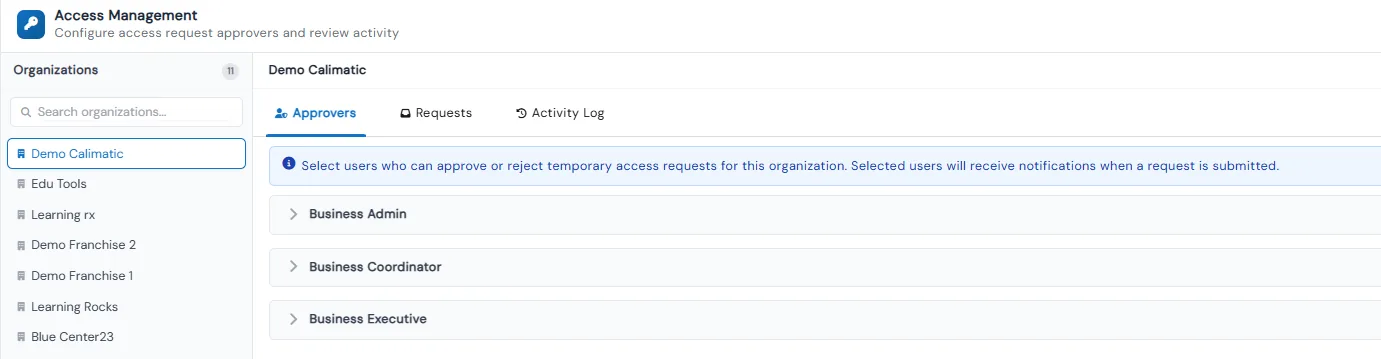
When a blocked user submits an access request, approvers get an email and a portal notification under Activity → Assigned to Me. For each organization you choose which roles can approve: Business Admin, Coordinator or Executive. They accept or reject the request and set how long access lasts, and the Activity Log records every decision and exports to PDF.
What's included
- Secure curriculum files open only within a set radius of your registered locations
- Locations added by address search on a map, per organization
- One company-wide radius in miles, set by head office
- Student count confirmation, checked against class schedules and enrollments
- Flags for access outside scheduled class or camp hours
- Address Conflict and Address Block for unrecognized addresses
- Download on or off for each curriculum item, plus separate View and Download permissions
- Accessed Locations log with document names, locations, student counts and batch explanations
- Conflict counters on the dashboard for Admin and Executive roles
- Digest security alerts per franchise, an end-of-day email and a test alert
- Temporary access requests with role-based approvers and an access duration
- Activity Log of every request and decision, exportable to PDF
Part of Calimatic Learning Management System, in one white-labeled platform with enrollment, billing and the parent app.
Who uses it
Education franchises
Sync your curriculum to every franchise and keep it from being opened anywhere except the centers that license it.
Learning center franchises
Check that worksheets and lesson files are opened during scheduled sessions, with a student count that matches the class.
Coding and STEM academies
Keep project files and lesson plans inside your locations, and switch off downloads for the items you do not want leaving the building.
Multi-location brands
See every location’s conflicts in one log, with digest emails to head office and each franchise admin seeing only their own.
See Curriculum Protection in a live demo
Get a personalized demo. We'll show Calimatic running your programs, under your brand.
- 14-day free trial, no credit card
- White-labeled under your brand
- Live product walkthrough
Curriculum Protection: FAQs
Common questions about Curriculum Protection in Calimatic.
From the Blog
How to Handle Territory Management for Education Franchise Networks
How to choose a territory model, size territories with real data, route leads fairly, handle online classes, and resolve disputes before they damage your education franchise network.
Read articleHow to Maintain Brand Consistency Across 10+ Education Franchise Locations
Discover proven strategies and systems that successful education franchises use to maintain uniform quality, branding, and student experience across multiple locations.
Read articleMulti-Location Management: Keeping Quality Consistent Across Franchises
Running multiple education locations? Learn proven strategies franchise owners use to maintain teaching quality, standardize operations, and scale successfully.
Read article