Enrollment Reports and Analytics for Learning Centers
See how many students are enrolled, who is new, who dropped and how full each class is, by location, month and program. Fourteen ready-made enrollment reports, plus dashboard numbers you can click into.
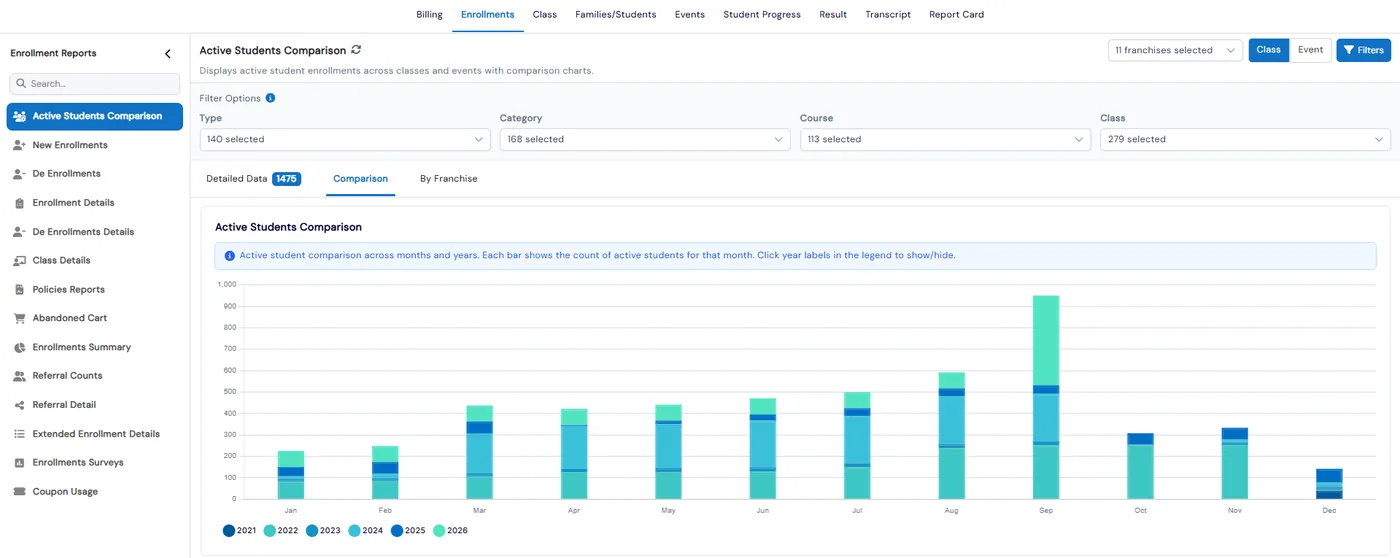
Enrollment reports in Calimatic show who is enrolled in your classes and events, who is new, who dropped out and how each class and location is doing, using the enrollments already in your system. Fourteen reports sit under Reports, Enrollments, and most pair a data grid with chart tabs, with filters such as franchise, date range, type, category, course and class.
The dashboard puts the headline numbers in front of you every day: total active enrollments, new enrollments this month, drop-offs, revenue and pending payments. Click any of them to open the data behind it, filter it, save your filters and download it.
How it works
- 1
Start from the dashboard
Counters show total active enrollments, new enrollments for the month, drop-offs, revenue generated and pending payments. Charts show new enrollments and drop-offs by month, enrollments from partners, event enrollments, and a comparison of this month against last month for classes and events.
- 1
- 2
Click a number to see what is behind it
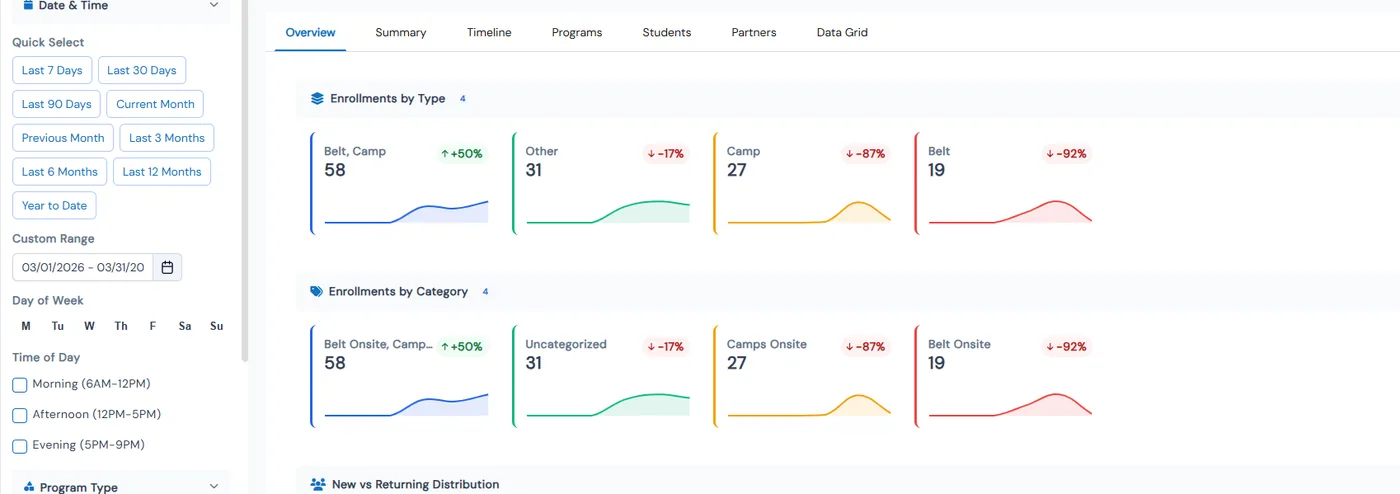
View Enrollment Analytics opens a drill-down with month-over-month and year-over-year change, this week’s enrollments and new enrollments this month. Tabs break enrollments down by type and category, new versus returning students, classes, events and partners, programs, families with more than one enrollment and how long students stay. Filter by date, day, time of day and program type.
- 3
Compare enrollments over time and by location
Active Students Comparison stacks monthly active students by year and compares your top franchises. New Enrollments and De Enrollments chart sign-ups and dropouts by month, and Enrollments Summary counts active students by type for each franchise, with an option to leave out drop-offs.
- 4
Check classes, referrals and coupons
Class Details shows total classes, enrolled students, revenue, enrollment rate and top class, and View Details shows a class’s slots and fill percentage. Referral Counts and Referral Detail show where families heard about you, Coupon Usage shows which coupons were used and by whom, and Enrollment Surveys counts the answers to your enrollment form questions.
- 3
- 5
See who started registering and didn’t finish
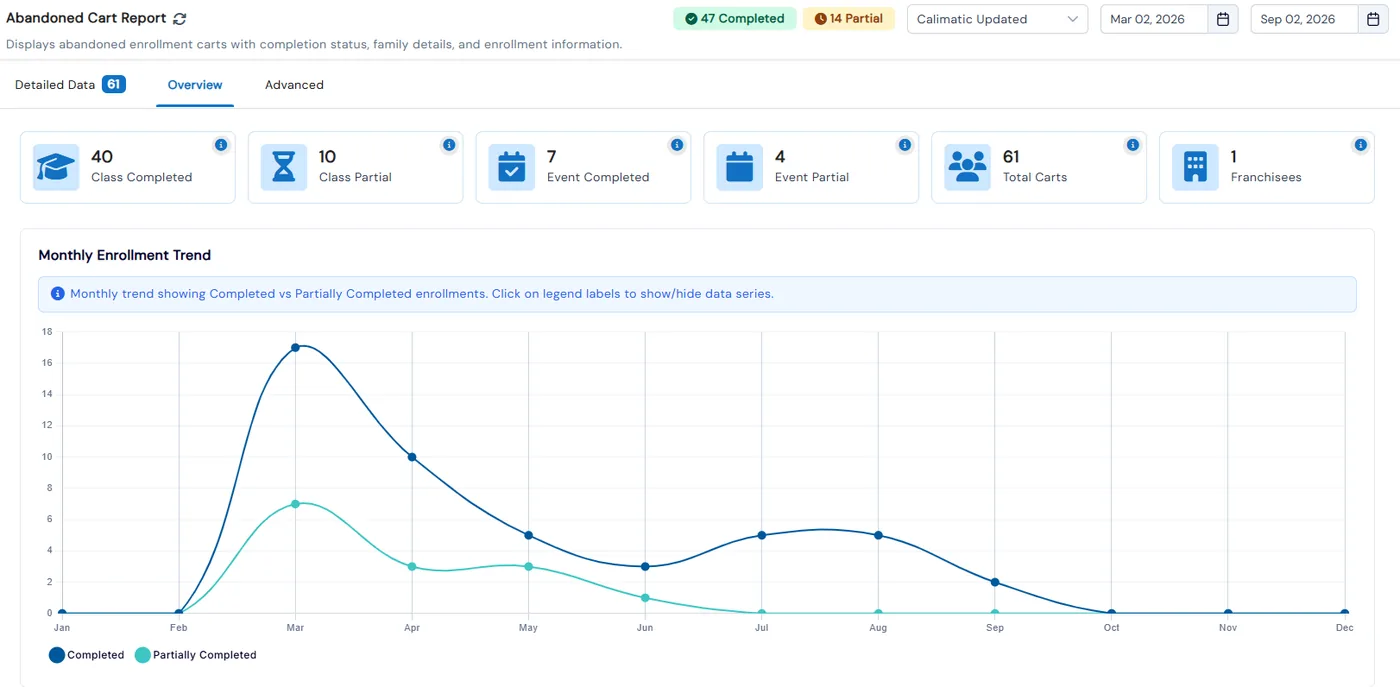
The Abandoned Cart report lists carts as Completed or Partially Completed, split by class and event, with a monthly trend. View Details opens the family’s contact details and each student’s enrollment history so your team can follow up. You can also turn on an email that sends the cart details to the franchise’s email address in the morning (US time) whenever carts were abandoned.
What's included
- Fourteen enrollment reports, most with a data grid plus overview and chart tabs
- Active Students Comparison by month and year, and by franchise
- New enrollments, de-enrollments and de-enrollment details, including drop dates
- Class Details with enrollment rate, revenue, top class and fill percentage
- Referral source counts and details from your enrollment forms
- Coupon usage, policy consent and enrollment survey reports
- Extended Enrollment Details with custom form fields, allergies, special needs and insurance
- Abandoned Cart report with Completed and Partially Completed carts and full family details
- Optional abandoned cart email to the franchise with the cart details
- Dashboard counters and charts that drill down into a filterable grid you can save and download
- Business-wide roll-up of new and active enrollments across franchises, or just the ones you pick
- Abandoned Cart, Enrollments Summary and referral reports hidden from instructors and coordinators
Part of Calimatic Reports & Analytics, in one white-labeled platform with enrollment, billing and the parent app.
Who uses it
Learning center franchises
Head office sees new and active enrollments rolled up across every franchise, or narrows the dashboard to the locations it picks, and compares franchises in each report.
Summer camps
Use the Abandoned Cart report to see which families started a camp registration and didn’t finish, open their contact details and follow up while there is still space.
Tutoring centers
Check which referral sources bring in students and which coupons get used, so you know where new families come from and which offers work.
Dance studios
Compare active students month by month across years, and use Class Details to see each class’s enrollment rate and which classes bring in the most revenue.
See Enrollment Reports in a live demo
Get a personalized demo. We'll show Calimatic running your programs, under your brand.
- 14-day free trial, no credit card
- White-labeled under your brand
- Live product walkthrough
Enrollment Reports: FAQs
Common questions about Enrollment Reports in Calimatic.
From the Blog
Franchise Owner Guide: Key Metrics to Track for Each Location
Master the essential KPIs that separate thriving franchise locations from struggling ones. Learn exactly what to measure and why it matters.
Read articleCRM for Education: Converting Inquiries Into Enrolled Students
Learn how education businesses use CRM systems to track leads, automate follow-ups, and convert more inquiries into paying students.
Read articleBuilding a Referral Program That Grows Your Enrichment Center Enrollment
Learn how to design and implement a referral program that turns satisfied parents into your most powerful enrollment channel.
Read article