Class Waitlist Software for Classes, Camps and Events
When a class fills up, families join the waitlist from your website instead of leaving. When a seat opens, one email lets the family you choose finish enrolling on their own.
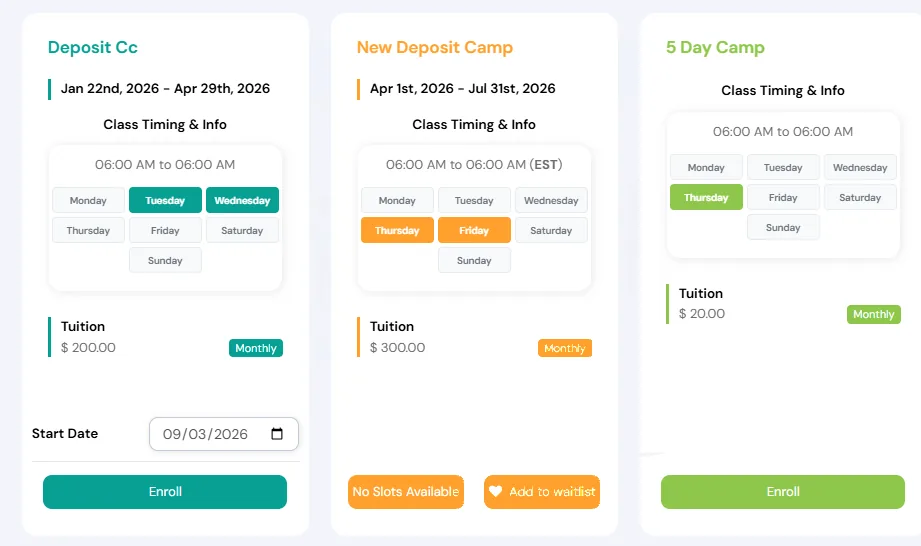
Waitlists in Calimatic let families get in line for a class, camp or event once every slot is full, and let you offer the next open seat with an email that takes them straight to enrollment. Families add themselves with the Add to waitlist button on your website, and staff can add anyone from the portal.
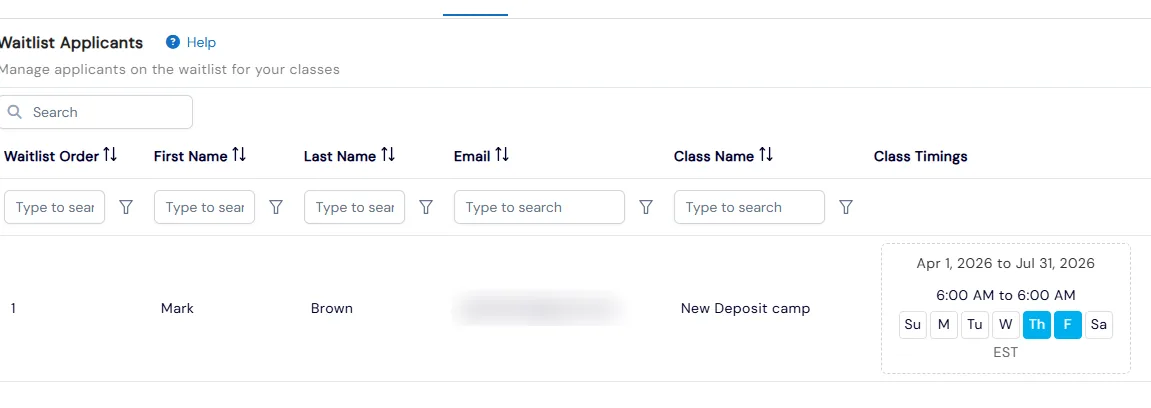
Every applicant lands in one Waitlist Applicants list with their place in line, the class they want and its schedule. When a seat opens, you choose who gets it and send the enrollment email. The link in it works only for that family and expires once they register, and the class makes room for them without you raising the slot count first.
How it works
- 1
Turn on the waitlist for a class or event
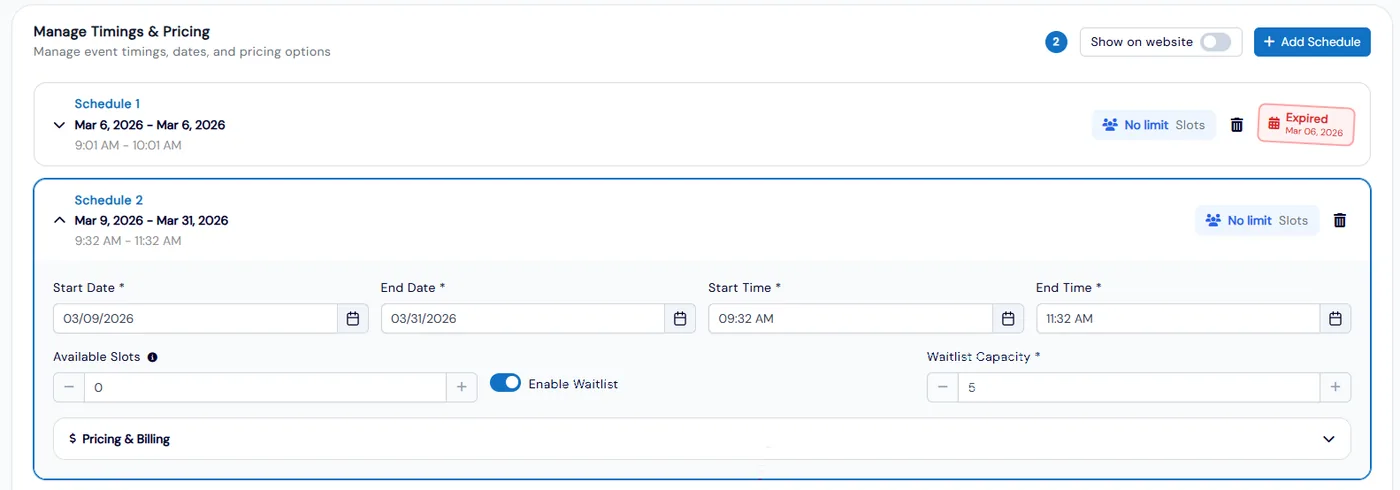
Switch on Can Add to Waitlist when you create or edit a class. For an event, open Manage Timings & Pricing, turn on Enable Waitlist on the schedule and enter how many waitlist places it has, so you decide which classes and events keep a line.
- 2
Families join from your website
Once every slot is taken, the card on your registration page shows No Slots Available and an Add to waitlist button. The family fills in a short form and is added to the line. Staff can add a student too, from Actions, Add to Waitlist on Class Overview or Events Overview.
- 2
- 3
See the whole line in one list
Waitlist Applicants shows each student’s waitlist order, name, email, the class they want and its timings, with search and a filter on each column. Each event also has its own Waitlist Applicants view in its actions menu.
- 4
Offer the seat with one email
Click Send Enrollment Email next to the applicant you want to enroll. They get a registration link only they can use, and it expires once they register. For a class, Calimatic adjusts capacity to fit them, so you don’t raise the slot count by hand. For an event, raise its available slots first.
- 5
Hear about every new request
Turn on Waitlist Notifications Email in Admin, System Config, Email Notifications and add the CC addresses that should get a copy. Calimatic then emails the family and your team each time someone joins a waitlist.
- 4
What's included
- Can Add to Waitlist setting on each class
- Waitlist toggle and waitlist capacity on each event schedule
- Add to waitlist button on full classes and events on your website
- Staff can add students to a full class’s or event’s waitlist from the portal
- One Waitlist Applicants list with waitlist order, contact details, class and timings
- Send Enrollment Email to the applicant you choose
- Registration link only that applicant can use, which expires once they register
- Class capacity adjusts for the waitlisted student, with no slot change needed
- Email waitlist applicants even when the class is hidden from your website
- Automatic emails to the family and your CC addresses when someone joins a waitlist
Part of Calimatic Admissions & Enrollments, in one white-labeled platform with enrollment, billing and the parent app.
Who uses it
Summer camps
Popular camp weeks fill fast. Families join the waitlist from the camp card, and when a camper drops you send the next family a link to finish registering.
Swim schools
Small lesson groups fill up. Keep a line for each class and see every family’s place and the class times they are waiting for in one list.
Dance studios
Turn the waitlist on class by class for the levels families ask for most, and offer each open spot to the dancer you choose.
After-school programs
Add families who call or walk in from Class Overview, so phone requests and online sign-ups sit in the same list.
See Waitlists in a live demo
Get a personalized demo. We'll show Calimatic running your programs, under your brand.
- 14-day free trial, no credit card
- White-labeled under your brand
- Live product walkthrough
Waitlists: FAQs
Common questions about Waitlists in Calimatic.
From the Blog
Managing Waitlists and Capacity: How Top Activity Centers Fill Every Seat
Learn proven strategies top activity centers use to maximize enrollment, manage waitlists effectively, and eliminate empty seats while increasing revenue.
Read articleHow to Manage Memberships, Drop-ins, and Class Packs at Your Activity Center
Learn proven strategies to handle multiple pricing models, reduce administrative headaches, and maximize revenue at your enrichment center.
Read articleScheduling Software for Activity Centers: Eliminate Double-Bookings and No-Shows
Learn how modern scheduling systems help activity centers eliminate double-bookings, cut no-shows, and increase revenue through better resource utilization.
Read article