Kanban Board for Students, Classes and Staff Tasks at Your Learning Center
See where every student is on their challenges, homework and assessments, move work forward by dragging a card, and run your team’s to-do list on a staff task board in the same place.
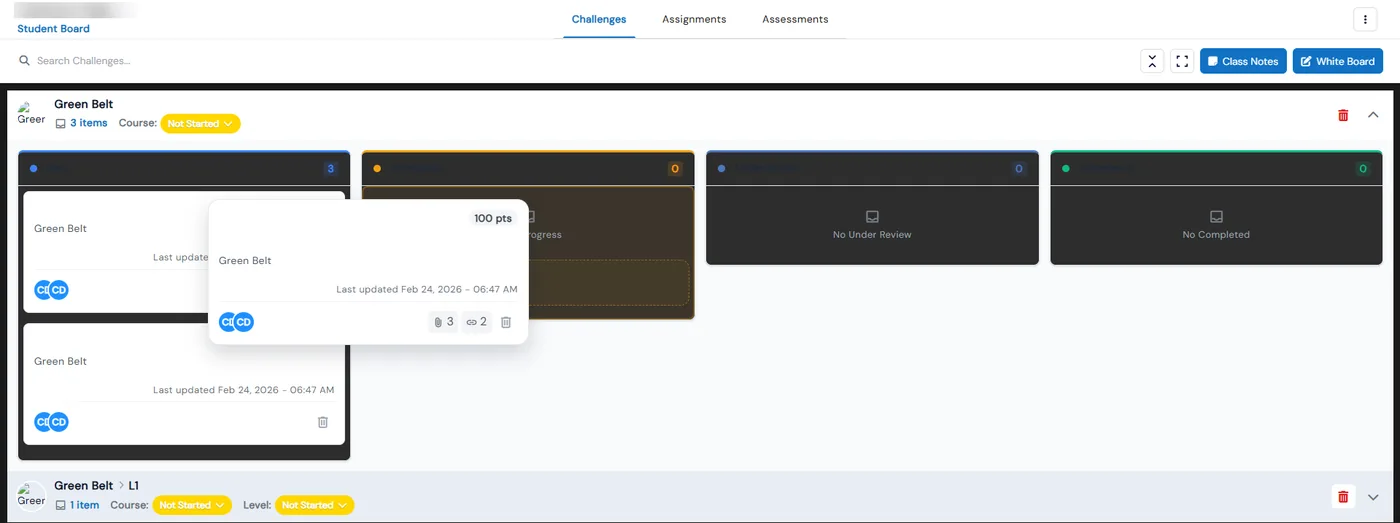
Boards in Calimatic are drag-and-drop kanban boards for tracking work. The Students Board shows one student’s challenges, homework and assessments in columns such as New, In Progress, Under Review and Completed. The Classes Board shows every student in a class at once, and the Staff Board tracks your team’s own to-do tasks.
Moving a card to a new column updates its status straight away, and when a challenge carries points the student receives them once it is completed. Boards are already on for your account, sit in the main staff menu and open from one picker, so instructors and front desk staff work from the same view of each student.
How it works
- 1
Open the board you need
Click Boards in the main menu and pick the Students Board, Classes Board or Staff Board. Each lists your most recently active students, classes or staff with a live count, and you can search by name and filter by Active or Inactive to jump straight to the one you want.
- 2
Follow a student across challenges, homework and assessments
On a Student Board, tabs switch between Challenges, Homework and Assessments, and each tab keeps its own columns and cards. Rows group the work by course. Hover a card to preview the points it is worth, its attachments and linked items, and drag it to a new column to change its status.
- 3
Assign work and points without leaving the board
The ⋮ menu on a Student Board has Assign Challenge, View Points and Manage Points, so you can give one student a new challenge or award and adjust points in place. White Board opens a drawing canvas with Whiteboard, Code and Content tabs and a Notes panel.
- 1
- 4
Run the whole class from the Class Board
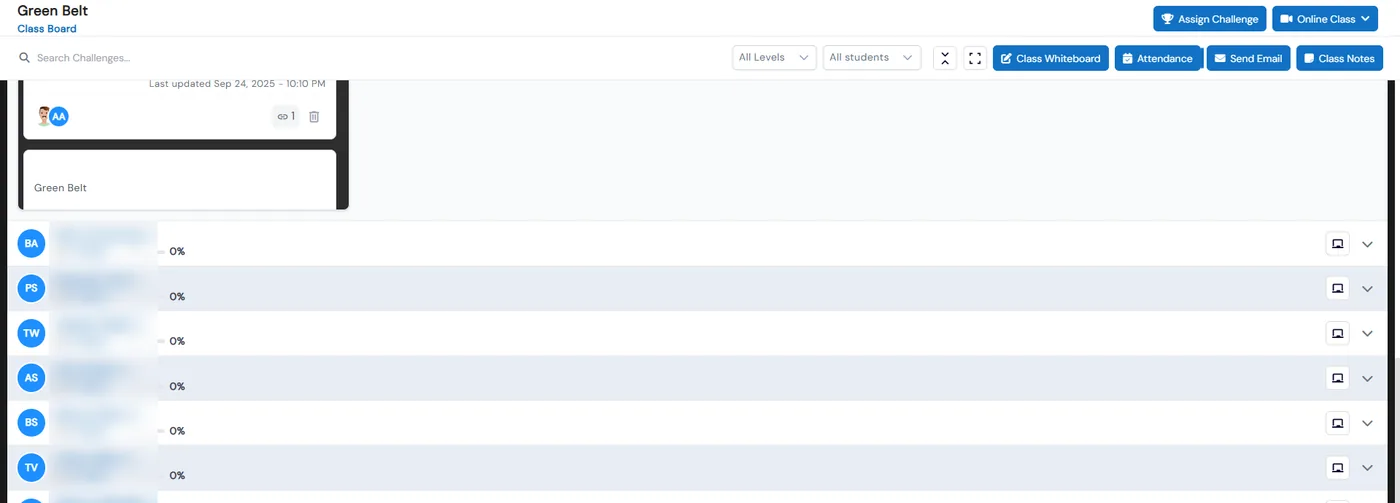
Assign Challenge on the Class Board sends the same challenge to every student in the class at once. The same header opens the Class Whiteboard, Attendance, Send Email and Class Notes, so you can take attendance or email the class without switching to another page.
- 5
Track staff to-dos on the Staff Task Board
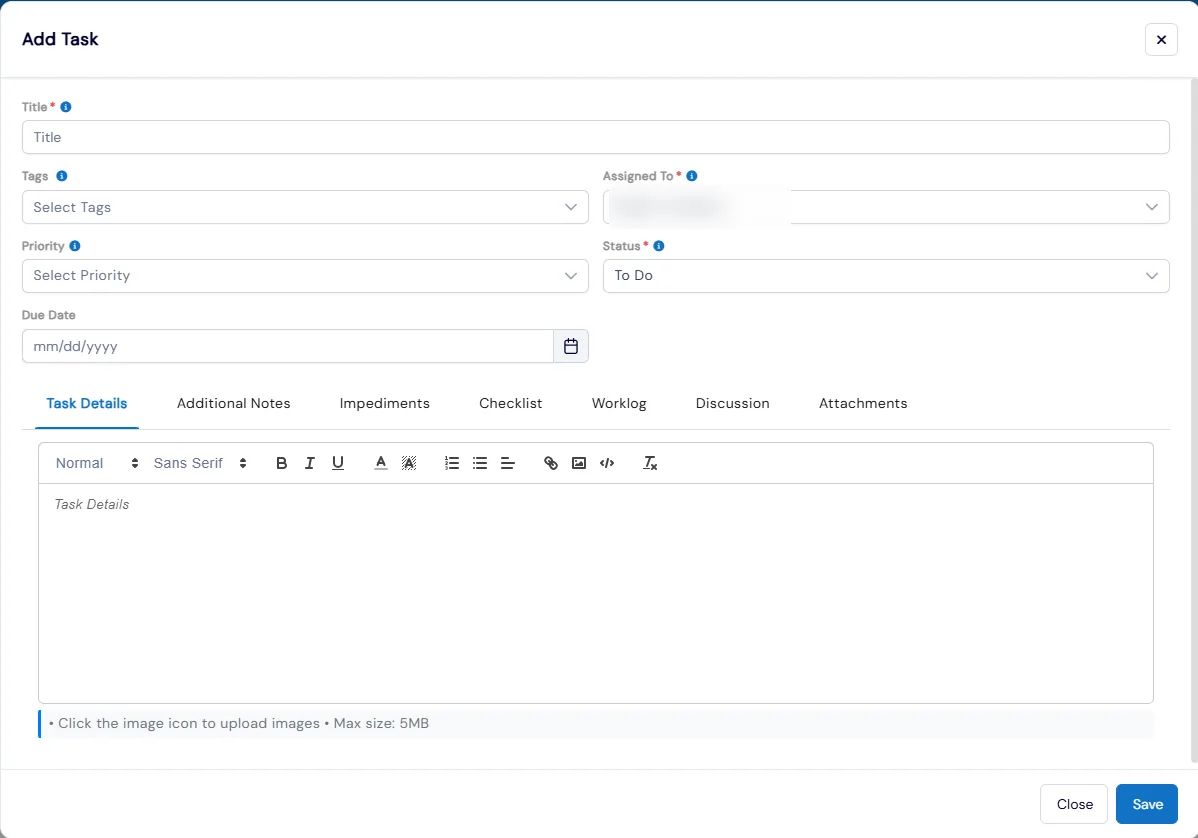
Click Add Task and fill in a title, tags, who it is assigned to, priority, status and a due date. Every task has tabs for notes, impediments, a checklist, a worklog, discussion and attachments. Manage Status edits the board’s columns, and Manage Predefined Tasks keeps a library of tasks you reuse.
What's included
- Students, Classes and Staff boards opened from one picker
- Search boards by name and filter by Active or Inactive
- Drag a card to a new column to update its status immediately
- Card previews with points, attachments and linked items
- Challenges, Homework and Assessments tabs on every Student Board
- Assign Challenge, View Points and Manage Points from the Student Board menu
- Points awarded when a challenge that carries points is completed
- One-click challenge assignment to a whole class
- Class Whiteboard, Attendance, Send Email and Class Notes on the Class Board
- Staff tasks with tags, assignee, priority, due date, checklist, worklog and impediments
- Editable Staff Board columns and a library of predefined tasks
- Collapse all swimlanes and fullscreen mode
Part of Calimatic Learning Management System, in one white-labeled platform with enrollment, billing and the parent app.
Who uses it
Tutoring centers
Open a student’s board before the session to see which challenges are under review and which homework is still open, then drag finished work to Completed.
Martial arts schools
Set up each belt as a course and track every student’s challenges toward the next belt on their board, with points awarded as they complete them.
After-school programs
Give the whole group the week’s challenge from the Class Board, take attendance and email families from the same header.
Multi-location centers
Keep opening and closing checklists as predefined tasks on the Staff Board, assign them with a due date and log the work against each task.
See Student, Class & Staff Boards in a live demo
Get a personalized demo. We'll show Calimatic running your programs, under your brand.
- 14-day free trial, no credit card
- White-labeled under your brand
- Live product walkthrough
Student, Class & Staff Boards: FAQs
Common questions about Student, Class & Staff Boards in Calimatic.
From the Blog
Technology Stack Every Education Franchise Needs to Scale Efficiently
Growing an education franchise beyond 3-5 locations? Here's the exact tech infrastructure you need to maintain quality, track revenue, and scale without chaos.
Read articleScaling Your Tutoring Business: Hiring and Managing Remote Tutors
Learn proven strategies for recruiting, onboarding, and managing remote tutors as you scale from solo operation to a thriving tutoring company.
Read articleNeurodiverse Learning: Creating Inclusive Learning Environments for Every Student
A practical guide to neurodiverse learning: predictable routines, calmer sensory spaces, Universal Design for Learning, executive function supports, and strategies for autism, ADHD, and dyslexia.
Read article