Online Course Builder for Tutoring and Learning Centers
Create a course, lay out its curriculum as levels, challenges and steps, and fill each step with a video, a quiz, homework, a SCORM package or a file. Preview it the way students see it, and start the online class from the same page.
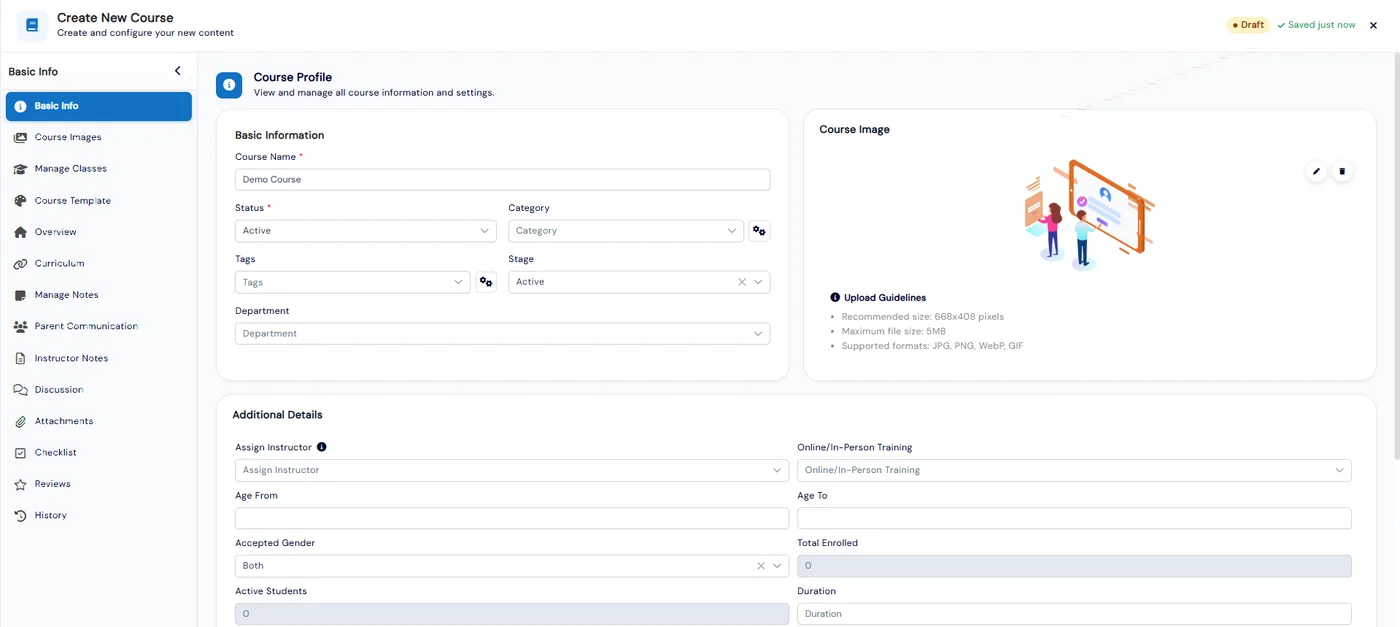
The course builder in Calimatic is where you create a course and its curriculum: you name the course, then add levels, challenges inside them and steps inside each challenge, and each step holds one piece of content such as a video, an assessment, homework, an HTML or SCORM package or a file. Course details save automatically as you type, so there is no Save button to forget.
Because the builder sits inside the same system as your classes and students, a finished course is ready to teach. You can set it up as an online class in Calimatic, Zoom or Google Meet and start the class from the course, students only see the steps assigned to them, and a head office can sync courses to its franchises.
How it works
- 1
Create the course
On the Courses page, click Create Course and enter the course name and basic details. Once the required fields are filled in, the course saves automatically and the rest of the course tabs open up so you can keep going. The Courses page shows every course as cards or as a compact list.
- 2
Lay out levels and challenges
Open the course’s Curriculum tab and click Add Level. Every level, and the course’s own top row, has an Add Challenge button, and both forms only ask for a name. A course does not need levels: challenges can sit directly under the course. Drag handles reorder levels, challenges and steps at every tier.
- 3
Fill each challenge with steps
Inside a challenge, quick buttons add a step of one of eight types. General is a rich-text editor for text, images and video. Video and Audio take an upload or a link. Assessment builds interactive questions, Code adds a coding challenge, and Homework has a title, priority and due date. HTML takes a zip with an Is SCORM File option, and Attachment takes files up to 50MB.
- 1
- 4
Preview it as students will see it
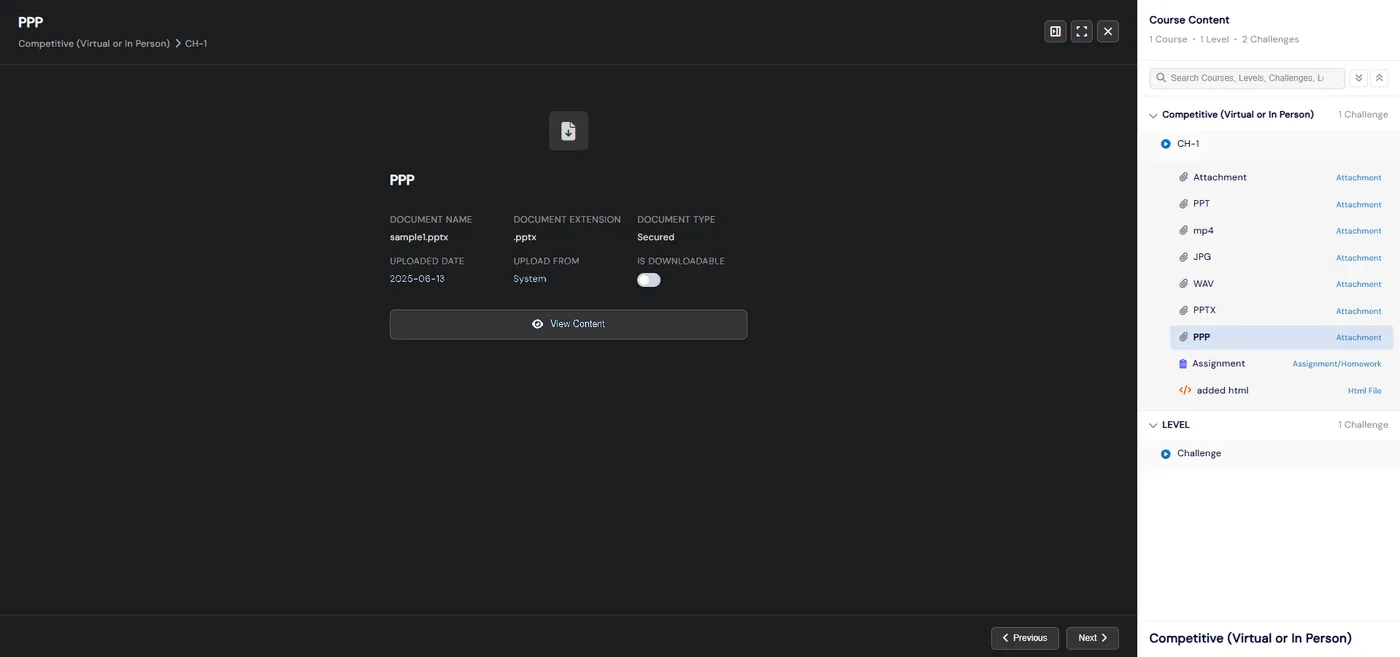
Click any step’s title to open it full screen. The content sits on the left and the whole curriculum on the right, so you can jump to another step without backing out. Previous and Next walk through the course in order.
- 5
Teach it online and keep courses organized
Click Online Class on the course, choose Zoom, Google Meet or Calimatic in Setup, then use Start Class. The Manage menu next to Create Course holds course types, categories, levels, challenges and course ordering. Level, Challenge and Step can be renamed system-wide in System Config, for example to Unit or Module.
- 5
What's included
- Course creation that saves automatically as you enter details
- Level, Challenge and Step curriculum, with challenges allowed directly under a course
- Eight step types: General, Video, Audio, Assessment, Code, Homework, HTML and Attachment
- SCORM packages uploaded as HTML zip files
- Attachments up to 50MB for documents, media and images
- Drag-and-drop reordering of levels, challenges and steps
- Full-screen step preview with a curriculum sidebar and Previous and Next
- Level, Challenge and Step renamed system-wide in Terminologies
- Card and List views of all courses
- Course types, categories and course ordering managed in one menu
- Online class setup in Zoom, Google Meet or Calimatic, started from the course
- Separate permissions for the Curriculum tab and for adding, editing and deleting content
Part of Calimatic Learning Management System, in one white-labeled platform with enrollment, billing and the parent app.
Who uses it
Tutoring centers
Turn your worksheets and lessons into a course of challenges and steps, with an assessment step to check each topic and homework due before the next session.
Learning center franchises
Build the curriculum once at head office and sync it to franchises. Step order and curriculum order changes carry over, and new locations can be synced without resyncing everyone.
Online tutoring
Set the course up as an online class in Calimatic, Zoom or Google Meet and start the session from the course that holds the lesson content.
Language programs
Rename levels to match your program, and mix audio clips, videos and short assessments in each challenge.
See Course Builder in a live demo
Get a personalized demo. We'll show Calimatic running your programs, under your brand.
- 14-day free trial, no credit card
- White-labeled under your brand
- Live product walkthrough
Course Builder: FAQs
Common questions about Course Builder in Calimatic.
From the Blog
How to Build Recurring Revenue as an Online Tutoring Company
Discover proven strategies to transform your tutoring business from unpredictable project-based income into stable, predictable monthly revenue streams.
Read articleBuilding a White-Label Tutoring Platform Under Your Own Brand
Transform your tutoring business into a branded platform that clients trust. Learn how to build professional white-label systems that scale.
Read articleHow to Build a Branded Education Business That Stands Out
Learn how to create a distinctive education brand that builds trust with families, differentiates from competitors, and scales consistently across locations and digital touchpoints.
Read article