Role-Based Permissions for Staff at Learning Centers
Decide what admins, executives, coordinators and instructors can see and do, page by page and button by button. Require a second login step for any role, and keep franchise roles separate from head office.
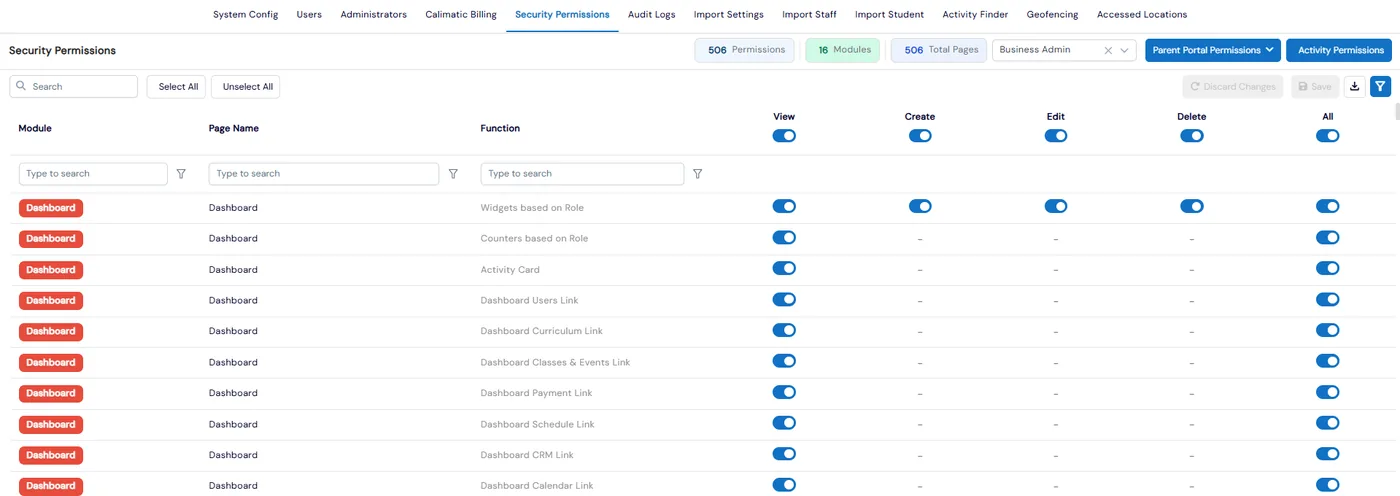
Staff permissions in Calimatic control what each role in your organization can see and do. Every staff account has a security role, such as Admin, Executive, Coordinator or Instructor, at business or franchise level, and Admin → Security Permissions sets View, Create, Edit and Delete for each role on every module, page and function. Business Admins can also require two-factor authentication at login for any role.
The same page decides which roles can read each part of the activity log and what families can do in the parent portal. Franchise admins manage their own franchise roles, while head office roles stay out of their reach, so each location can set up its team without touching yours.
How it works
- 1
Give every staff member a security role
Security Role is required when you add staff from Staff → Staff Info or a user from Admin → Users. Invite User sends someone an email to set their own password with the role you chose, though Admin is not offered there. No one can change their own security role, however senior.
- 2
Set what each role can do
Pick a role in Security Permissions and its grid loads: one row per module, page and function, with View, Create, Edit, Delete and All toggles. Turning off View also turns off the rest of that row, and some rows relabel Edit as something more specific, like Download for class notes and recordings. Filter by module, page or function, then Save or Discard Changes.
- 1
- 3
Require two-factor authentication by role
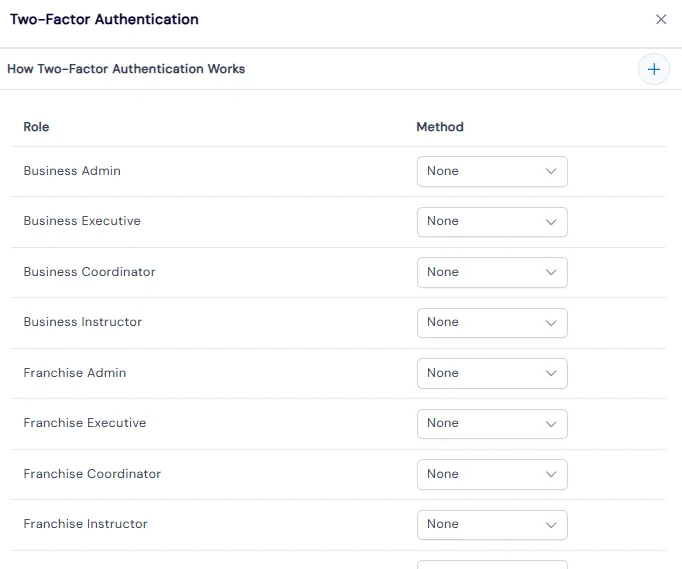
The Two-Factor Authentication button lists every role with a Method of None, Email or SMS. Once a role has a method, everyone in that role must complete the second step when they log in. This option is turned on for your account on request, so ask support if you do not see the button.
- 4
Choose who can read the activity log
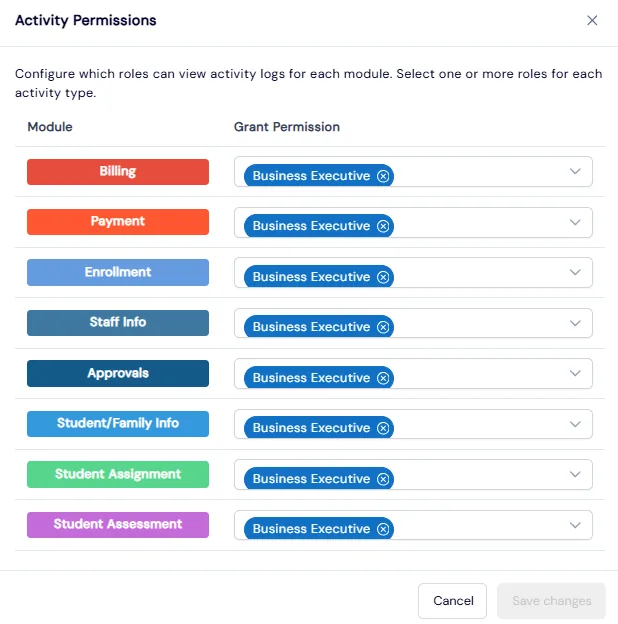
Activity Permissions sets which roles can see each category of the activity log: Billing, Payment, Enrollment, Staff Info, Approvals, Student/Family Info, Student Assignment and Student Assessment. Pick one or more roles for each, separately from the main grid.
- 5
Document it and extend it to mobile and files
Export the grid to Excel or CSV, filtered to the module you want on record. In System Config, Mobile Permissions grants or removes each mobile app screen per role, Attachments Config sets who can add, view, download or delete course, level and challenge files, and Reports Config picks who can view the Result and Staff reports.
- 5
What's included
- Security role required on every staff account, at business or franchise level
- View, Create, Edit and Delete toggles for each module, page and function, per role
- Module, page and function filters with select-all toggles, Save and Discard Changes
- Export of the permission grid to Excel or CSV
- Two-factor authentication by role, by email or SMS, mandatory at login once set (enabled on request)
- Activity log access set by category and role
- Franchise admins manage only franchise-level roles
- No user can change their own security role
- Invite staff by email with a role, or add staff with no login until you send portal access
- Mobile app screen permissions, dashboard widgets and menus per role
- Add, view, download and delete permissions for course, level and challenge attachments
- Parent portal permissions for all franchises or one franchise at a time
Part of Calimatic Staff Management, in one white-labeled platform with enrollment, billing and the parent app.
Who uses it
Learning center franchises
Franchise admins set up permissions for their own coordinators and instructors, while Business Admin and Business Executive roles stay out of their reach.
Tutoring centers
Let coordinators open a family’s billing tab while only the roles you choose can use the Request Billing Info button to ask families for billing details.
Coding academies
Allow instructors to view code files and whiteboard files on a course without being able to download or delete them.
Multi-location operators
Require two-factor login by email or SMS for admin and executive roles, and limit billing and payment activity logs to the people who handle money.
See Staff Permissions & 2FA in a live demo
Get a personalized demo. We'll show Calimatic running your programs, under your brand.
- 14-day free trial, no credit card
- White-labeled under your brand
- Live product walkthrough
Staff Permissions & 2FA: FAQs
Common questions about Staff Permissions & 2FA in Calimatic.
From the Blog
How to Start a Franchise Learning Center: A Complete Guide
Everything you need to know about launching a franchise learning center, from market research and licensing to technology, staffing, and scaling operations across multiple locations.
Read articleEdTech Regulations Around the World: Audits, Enforcement and Compliance Compared
How FERPA, COPPA, GDPR and accessibility rules apply to EdTech and online tutoring, what triggers audits and enforcement actions, common deficiencies, and a practical compliance checklist.
Read articleTechnology Stack Every Education Franchise Needs to Scale Efficiently
Growing an education franchise beyond 3-5 locations? Here's the exact tech infrastructure you need to maintain quality, track revenue, and scale without chaos.
Read article