Accept Online Payments for Classes, Studios and Tutoring Centers
Connect your own Stripe or NMI account, let families pay from an email link or their parent portal, keep cards on file for later charges, and see every payment, failure and refund in one place.
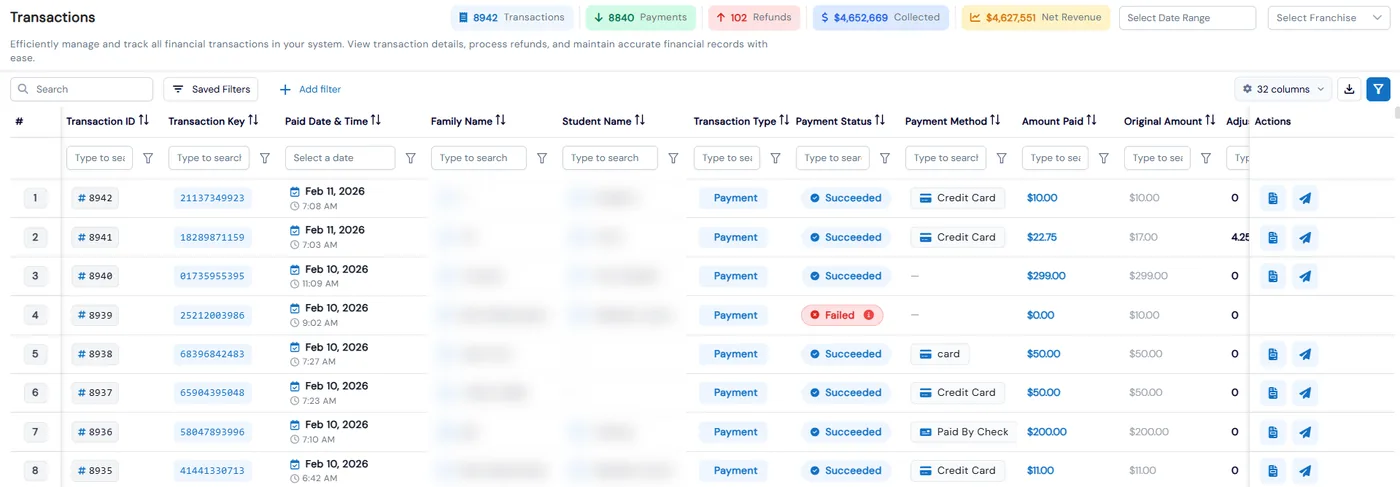
Online payments in Calimatic run through your own payment gateway account, so families pay you directly by card through Stripe, or by card or bank account through NMI. Families pay from an invoice link in their email without logging in, from the parent portal, or with a card they saved earlier, and staff can take a card payment for a parent from the same screen.
Every completed payment is recorded as a transaction against the student and family. The Transactions page shows payments, refunds, the amount collected and each payment’s status and method, and staff with permission issue refunds from the same row. Cash, check and bank transfer payments are recorded alongside, so one list holds everything a family has paid.
How it works
- 1
Connect your Stripe or NMI account
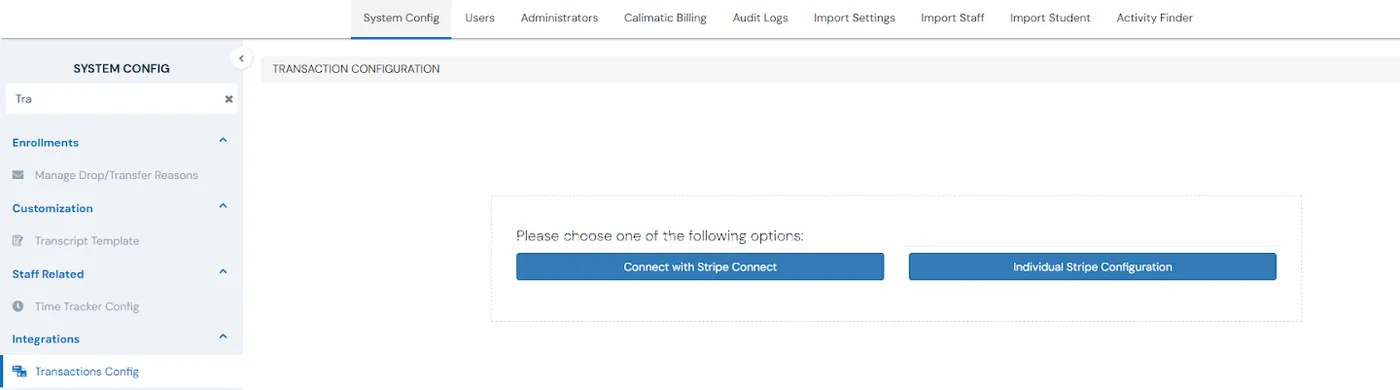
Create a Stripe account, copy its API keys and client key, and enter them under Admin, System Config, Transactions Config. A message confirms the connection is active. A franchise can choose Connect with Stripe Connect to use the business’s Stripe setup and complete Stripe’s onboarding, or Individual Stripe Configuration to use its own keys.
- 2
Let families save a payment method
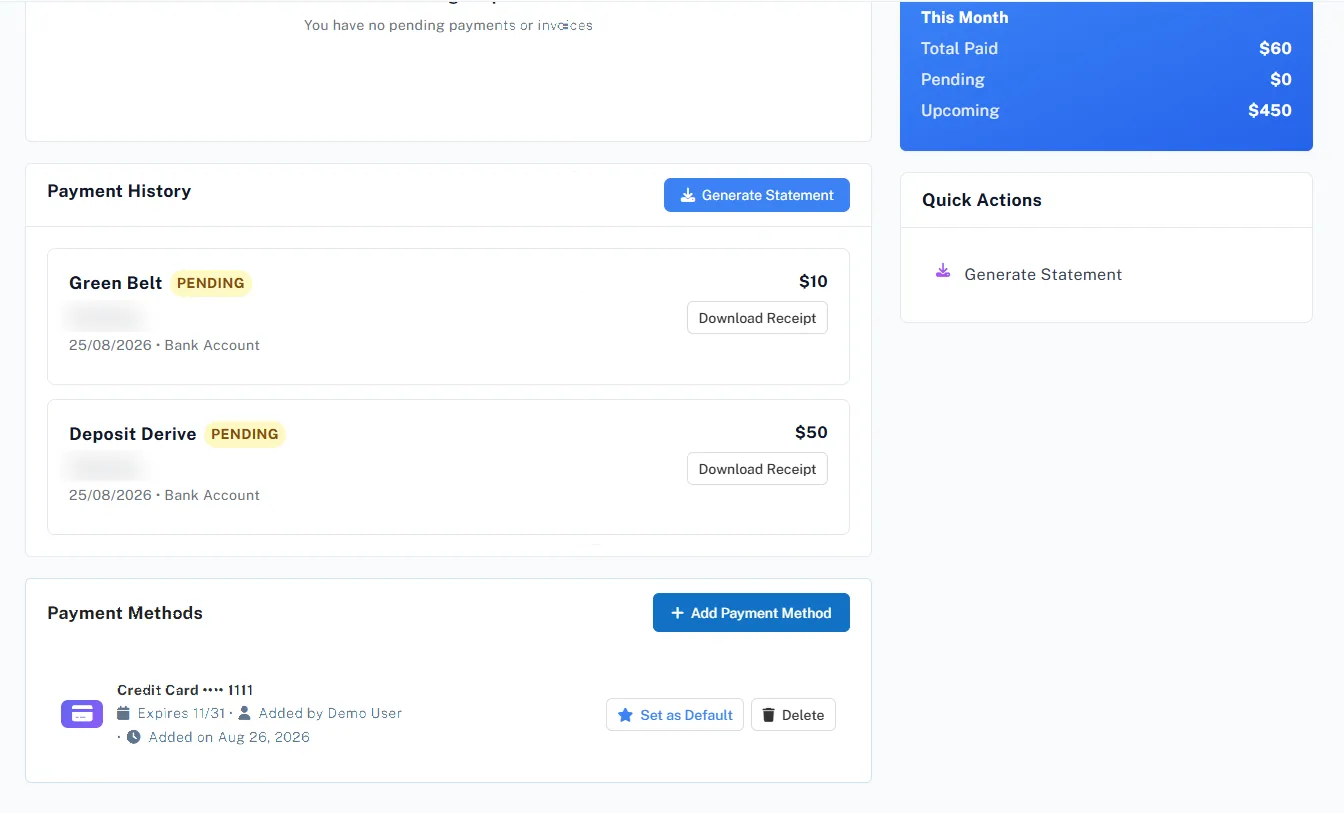
Families add a card in the Payments tab of their parent portal, and staff can add one from the family’s Billing tab. On Stripe that is a credit card; on NMI families can choose a card or a bank account or check. One method is the default that charges come from, and each shows its brand, last four digits, expiry, who added it and when.
- 3
Collect a payment the way that suits the family
On any unpaid enrollment or fee, click Pay. Send an invoice with a payment link the parent pays from the email without logging in, use Pay Directly Here to enter card details for the parent and charge it straight away, or record cash, check or bank transfer under Other Payment Methods with a photo of the check.
- 4
Track every transaction
The Transactions page, also on each student and family record, lists every completed payment with its date and time, type, status and payment method, and each recurring cycle as its own transaction. Bank account payments through NMI show as Pending until the bank confirms them, usually within 5 to 7 business days, and then change to Succeeded or Failed.
- 5
Refund and handle failed payments
Staff with refund permission click Refund on a transaction, refund a completed recurring cycle from its Recurring Payments popup, or enter a partial amount when a student drops or transfers. For a failed payment, choose Collect Payment to try again, Collected by Other Ways, or No Longer Needed.
- 3
What's included
- Your own Stripe account, or NMI for card and bank account payments
- Stripe Connect for franchises using the business’s Stripe setup, or each franchise’s own keys
- Invoices with a payment link that families pay without logging in
- Pay Directly Here for staff to charge a card on a parent’s behalf
- Saved payment methods in the parent portal and on the family’s Billing tab
- Default payment method, with a warning that automatic charges stop when none is set
- Brand, last four digits, expiry and Default, Verified and Expired or Expiring Soon badges on each saved method
- Email parents a request to add a billing method, and a Card Expiring automation trigger
- Transactions page with payment, refund, amount collected and net revenue counts
- Pending status for NMI bank account payments until the bank confirms them
- Full and partial refunds, including completed recurring cycles and payments made by check
- Cash, check and bank transfer recorded beside online payments, with an email when one is logged
Part of Calimatic Billing & Payments, in one white-labeled platform with enrollment, billing and the parent app.
Who uses it
Dance studios
Families save a card in the parent portal once, and later charges for classes and fees come from their default card without asking for it again.
Tutoring centers
A parent calls to pay for a package of sessions. Staff open the unpaid enrollment, choose Pay Directly Here, enter the card details and the payment is recorded straight away.
Music schools
Send an invoice with a payment link to families without a card on file. They pay from the email without logging in, and the payment shows on the Transactions page.
Franchise networks
Each location connects to the business’s Stripe account through Stripe Connect, or uses its own Stripe keys, and the Transactions page can be filtered by franchise.
See Online Payments in a live demo
Get a personalized demo. We'll show Calimatic running your programs, under your brand.
- 14-day free trial, no credit card
- White-labeled under your brand
- Live product walkthrough
Online Payments: FAQs
Common questions about Online Payments in Calimatic.
From the Blog
Building a White-Label Tutoring Platform Under Your Own Brand
Transform your tutoring business into a branded platform that clients trust. Learn how to build professional white-label systems that scale.
Read articleHow to Automate Billing and Reduce Late Payments in Education
Education businesses lose thousands monthly to late payments and manual billing errors. Learn how automation can recover that revenue and save hours each week.
Read articleManaging Payments and Invoicing for Online Tutoring Businesses
Struggling with late payments and manual invoicing? Learn proven strategies to streamline payment collection, reduce admin time, and improve cash flow in your tutoring business.
Read article