Attendance Tracking Software for Classes and Tutoring Centers
Mark every student Present, Absent, Arrived Late or another status in a few clicks, keep a note on any session, see who marked what, and pull attendance reports you can export or print.
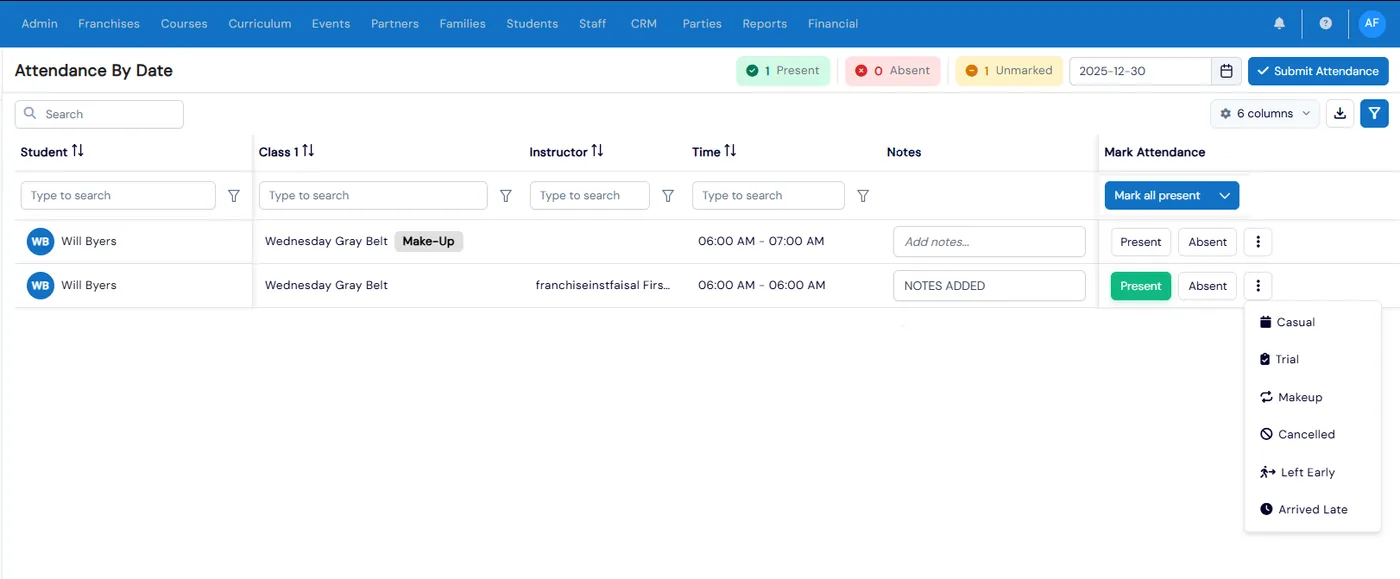
Attendance tracking in Calimatic is the Attendance page where staff and instructors mark each student Present, Absent or another status, add a note, and review the history, working by date, by class, by course or by student. Counters at the top show how many students are present, absent and still unmarked, and Mark all fills in a whole list with one status.
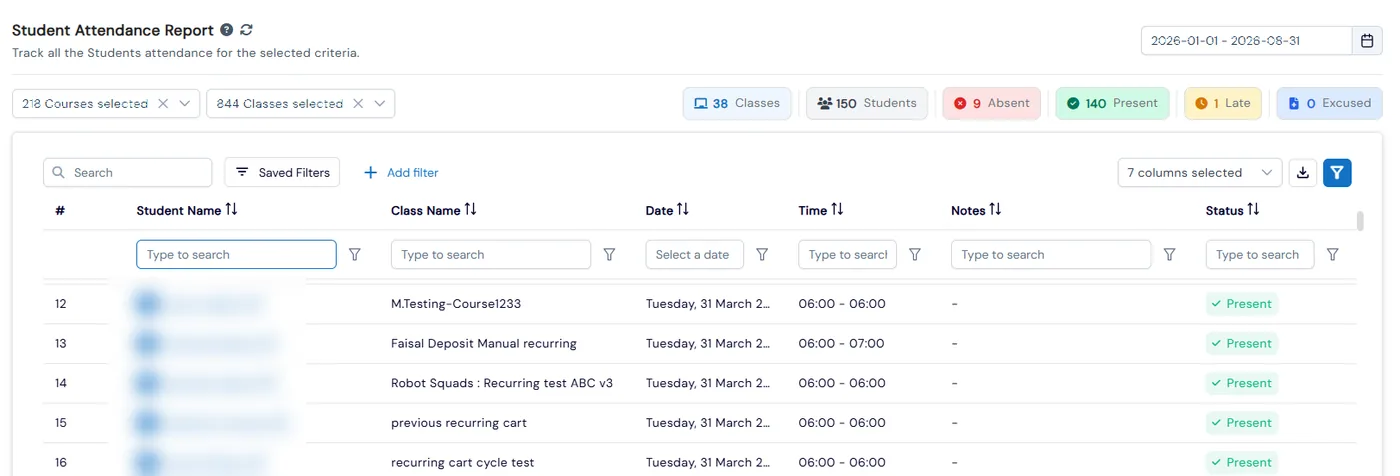
Every mark feeds the rest of the system. The Student Attendance report shows each student’s class, date, time, note and status and exports to Excel, CSV or PDF. Automations can send a message when a student is marked absent or reaches a set number of absences, and if families buy classes in advance, the marks you choose take classes off the student’s balance.
How it works
- 1
Open attendance from where you already work
Go to Students and then Attendance, or open Attendance from a class’s Action menu, which opens the attendance page for that class in a new tab. The Class Board header has an Attendance link too, and each instructor’s staff record has an Attendance tab showing the by-course view for their own students.
- 2
Take today’s attendance by date
In By Date, pick the date and every scheduled student for that day is listed with their class, instructor and time. Click Present or Absent, or open the menu for Casual, Trial, Makeup, Cancelled, Left Early or Arrived Late. Type a note for any student, then click Submit Attendance.
- 3
Mark a whole class at once
Mark all sets every student in the list to Present, Absent, Casual, Trial, Makeup, Cancelled, Left Early or Arrived Late, and Clear All Marks starts over. In By Class, By Course or By Student, click Attendance, pick the session from the date strip, use Mark All Present and change only the students who were different, then click Save Attendance.
- 1
- 4
Review the history and who marked it
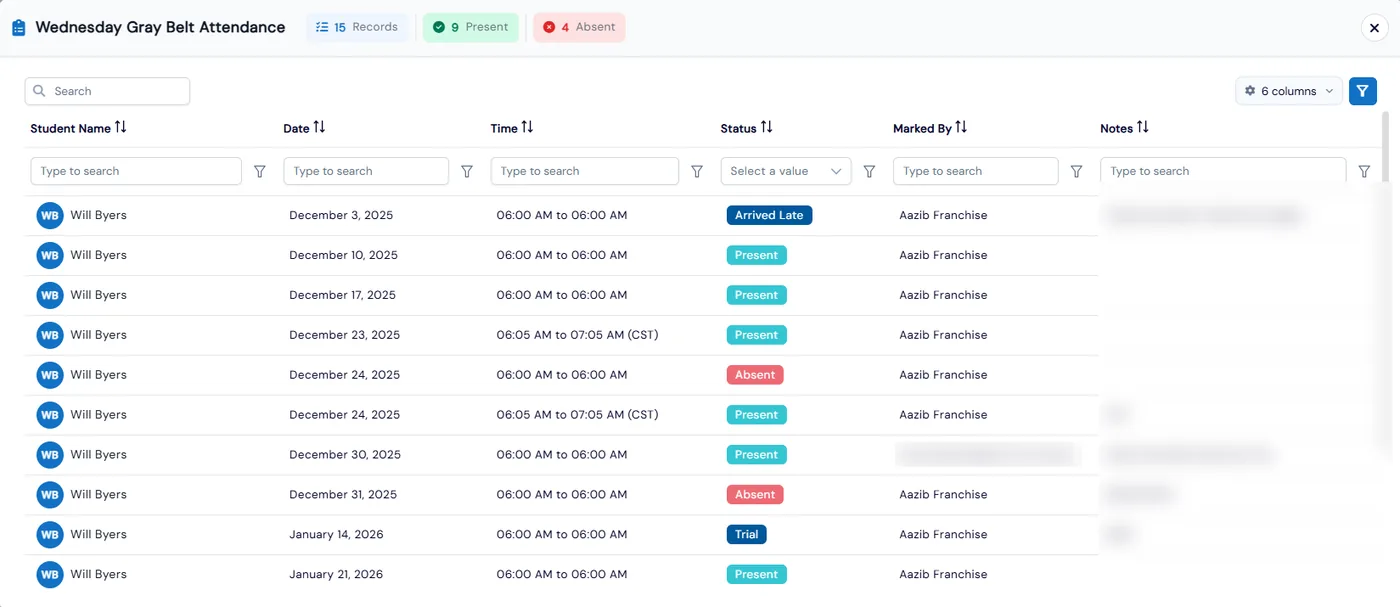
Click View Attendance on a class, course or student to see every record with the date, time, status, the staff member who marked it and the note, with Present and Absent counts at the top. Filter any column, and click a student’s name on the Attendance page to open their Student Info popup without leaving the page.
- 5
Report on attendance and act on it
The Student Attendance report lists each mark with its note and counts classes, students, present, absent, late and excused for the date range and classes you pick, with Excel, CSV and PDF export. Class reports add an Excused/Unexcused report and a Makeups report, and the Roll Sheet report prints a sheet with a column per date for marking by hand.
What's included
- Four attendance views: By Date, By Class, By Course and By Student
- Present and Absent buttons, plus Casual, Trial, Makeup, Cancelled, Left Early and Arrived Late
- Present, Absent and Unmarked counters for the day you are marking
- A note on any student’s attendance, shown again in the Student Attendance report
- Mark all with any status, and Clear All Marks
- Date strip for each class, with Add Make-up and Cancel Class on the same screen
- Attendance history with the staff member who marked each record
- Student names that open the Student Info popup, with editing limited by staff permissions
- Attendance from the class Action menu, the Class Board and each instructor’s staff record
- Student Attendance report with Excel, CSV and PDF export
- Excused/Unexcused, Makeups and printable Roll Sheet reports
- Attendance Marked and Attendance Count automation triggers, with ready-made attendance templates
Part of Calimatic Student Information System, in one white-labeled platform with enrollment, billing and the parent app.
Who uses it
Tutoring centers
Families buy classes in advance, and you choose which marks use a class, such as Present, Arrived late or Makeup. When you save attendance, a Classes used step shows what each mark takes off, and you can change it there.
Martial arts schools
Run several classes a day and take attendance by date: mark everyone present in one click, change the few who arrived late or left early, and add a note for anyone who needs follow-up.
After-school programs
Print the Roll Sheet report for each class, with a column per date and options for landscape, condensed layout and a page break per class, for staff who mark attendance on paper.
Online tutoring
Classes taught in the Simpech virtual classroom are marked automatically, and the Attendance by Online Class report shows each student’s time in the session with a link to the recording.
See Attendance Tracking in a live demo
Get a personalized demo. We'll show Calimatic running your programs, under your brand.
- 14-day free trial, no credit card
- White-labeled under your brand
- Live product walkthrough
Attendance Tracking: FAQs
Common questions about Attendance Tracking in Calimatic.
From the Blog
Attendance Tracking and Reporting: New Automation Features
Discover how our new automated attendance management capabilities save time and improve accuracy for learning centers.
Read articleHow Franchise Learning Centers Can Reduce Operational Costs
Discover proven strategies franchise education businesses use to cut operational expenses while maintaining quality and scaling efficiently.
Read articleChoosing the Right Virtual Classroom Platform for Your Tutoring Business
The wrong virtual classroom platform costs tutoring businesses thousands in lost revenue. Here's how to choose one that drives growth instead of frustration.
Read article